
View modes
Six ways to draw the same model: solid, wireframe, X-ray, heatmap, clay and CAD. One key each, plus the Shading card for the clay and CAD looks.
A view mode changes how the model is drawn, not the model itself. Switch with Alt and a number for the first four, and with the number alone for Clay and CAD. The tool strip at the left edge of the viewport has one View button for the first four: a click turns the Wireframe on and off, and holding it (or a right-click) lists Solid, Wireframe, X-ray and Heatmap. Clay and CAD are chosen on the Shading card in the right sidebar (see below).
- Alt1
- Solid: the normal view, with colours and lighting
- Alt2
- Wireframe: only the edges of the triangles
- Alt3
- X-ray: every part as a see-through shell
- Alt4
- Heatmap: parts coloured by triangle density
- 5
- Clay: every part in one plain material. Press it again to return to solid.
- 6
- CAD: flat, matte shading with a dark line on every sharp edge. Press it again to return to solid.
Solid
The everyday view. Parts have their own colours and are lit by a soft studio and a light that follows the camera, so dark parts keep an edge and a sheen.
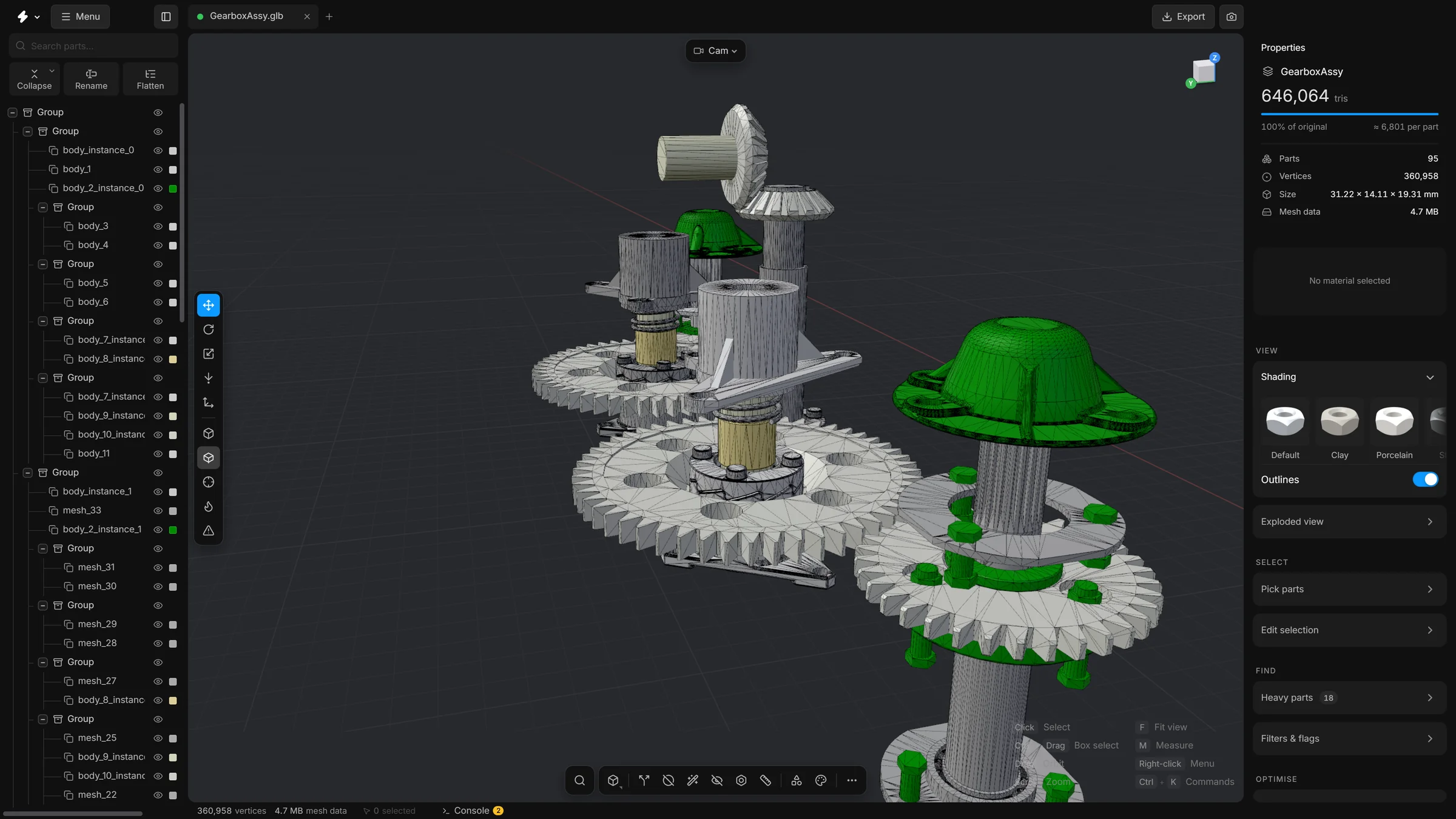
Wireframe
Shows the triangles themselves. Use it to see how dense a mesh is, and to check what Decimate has done. Where the lines are so close that they merge into a solid patch, the mesh is very dense.
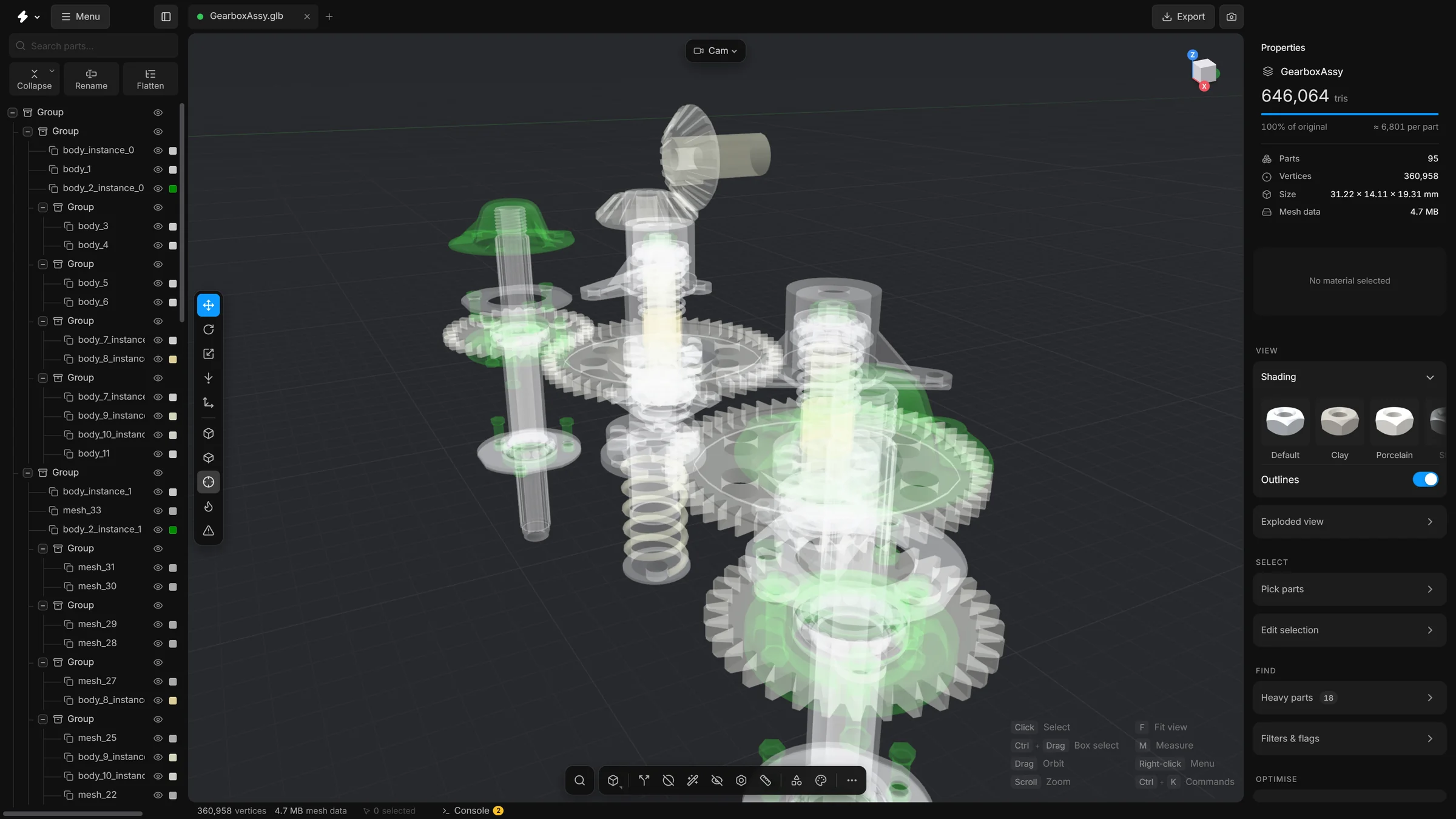
X-ray
Makes every part translucent, so you can see what is inside without hiding anything.
Heatmap
Colours each part by how many triangles it has for its size. It answers the question “where is the weight?” at a glance. See How to read the numbers.
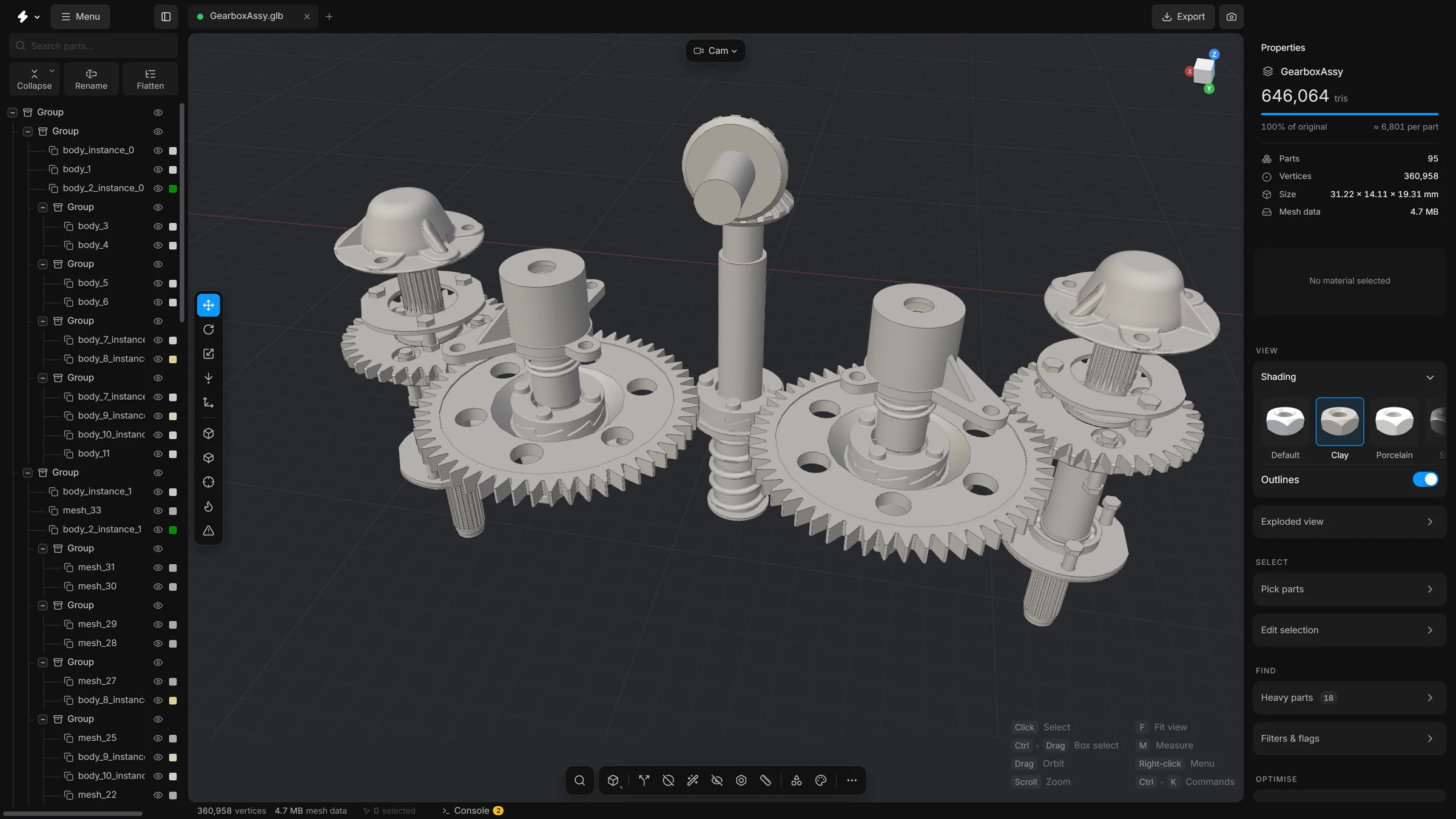
Clay
Takes the colours away. Every part gets the same plain material, so all that is left is form: edges, curvature, and what stands in front of what. It is a good view for judging whether a simplified model still reads as the same object.
Clay has four looks: Clay (matte grey), Porcelain (pale and glossy), Steel (metal) and Red wax. You choose the look on the Shading card.
CAD
The look of a CAD program. There are no lights, no reflections and no shadows. A surface gets its shade only from the way it faces the camera: lighter where it looks left, darker where it looks right, and a warm sand tone where it looks up. (This kind of shading is called a matcap: a picture of one lit ball, and every surface takes the colour of the spot on the ball that faces the same way.)
A grey or white part takes the shading as it is. A coloured part keeps its colour, with the same shading on top. A fine dark line follows the sharp edges of every part, and the sides of round parts get a thin dark outline too, so the form stays easy to read.
CAD has three looks: Ceramic (the default, with warm tops), Light (brighter) and Mono (plain grey, no warm tone).
The Shading card
In the right sidebar, under Properties, is the Shading card. If it is folded, click its header to open it. It is one row of small 3D nuts, each drawn in its own look, so you see what a look does before you choose it. The row scrolls sideways when the sidebar is narrow.
- Default
- The plain Solid view, with the model’s own materials.
- Clay, Porcelain, Steel, Red wax
- The four clay looks.
- Ceramic, Light, Mono
- The three CAD looks. They carry a small CAD badge.
- CAD lines
- A switch under the row. It turns the dark lines on the edges on or off, and the line under it says what they are.
- Click a look. The view switches to clay or CAD, whichever the look belongs to, and the look you clicked is lit.
- Click another look to change it. The model changes at once.
- Click the lit look again to go back to Solid. Clicking Default does the same.
Keys 5 and 6 do the same as clicking: they switch to clay or CAD with the last look you used, and press again to go back to solid.
CAD lines
The CAD lines switch draws a fine dark line along the edges of every part. It works in Solid, Clay and CAD views, and is on to begin with. It is not drawn in Wireframe, X-ray or Heatmap. It is the only place to switch the lines; the CAD edges pill and Settings do not have it.
The line under the switch says what the lines are. Real CAD edges, from the STEP file: the parts came from a STEP file with their CAD data, and the lines are the edges the designer drew. Outlines found by angle: the model has no CAD data (a GLB, OBJ, FBX or STL), and the lines are drawn where two faces meet at a sharp angle. When a scene has both, it counts the parts of each kind. A dot in the accent colour means real CAD edges.
On a very large scene, the smallest parts may be drawn without outlines to keep the view quick. The app tells you when it does this.
Good to know
- A view mode never reaches a file. Saving and exporting switch to solid while they run, then switch back.
- To see inside a model, use X-ray, Hide, isolate, show all or Select hidden parts.
- The background and the lighting are under Settings, Viewport and in the Scene card of the right sidebar. CAD does not use the lights at all.
- A screenshot uses the view that is on, unless you choose Solid, Wireframe or X-ray in the screenshot window.