
The parts library and shapes
Add standard parts to a scene from a drawer under the viewport: 112 bolts, nuts, pipes, profiles, machine parts, electronics and brackets. Look at a part and set its size before it goes in.
MeshOptimiser can also add parts. The library holds 112 ready-made parts on eight shelves. Each one is parametric, which means it is built from numbers such as a diameter and a length, and you can change those numbers before you place it and after.
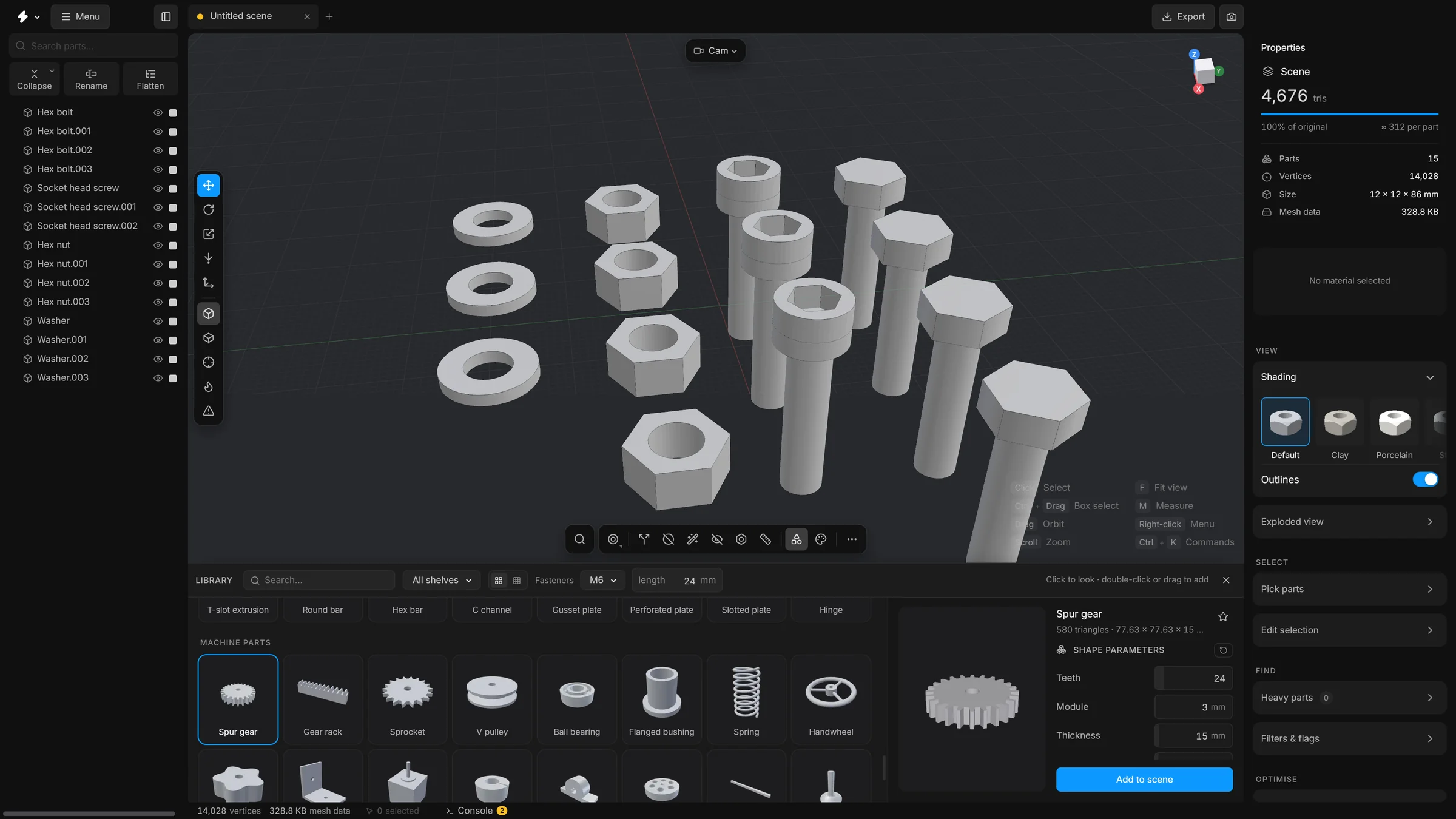
Open the library
Press ShiftL, or click the button with the small shapes on the bottom toolbar, just left of the palette button. The library is a drawer: it slides up from the bottom of the viewport and leaves the parts tree where it is. Press ShiftL again, or click the cross in its header, to close it.
- Drag the top edge of the drawer to make it taller. Double-click the edge to reset it. The materials dock and Animate keep the same height, unless Same height for every dock is switched off under Settings, General.
- One drawer is open at a time. The library, the materials dock and the console give way to each other.
- To keep the library open next to the materials, press Pop out as a floating window in its header. The library becomes a window over the view: drag it by its head, and resize it from any edge or corner. The same button, now Dock to the bottom, puts it back. Where you left it is remembered in this browser.
The drawer has two halves. On the left are the parts, in shelves, each with a small picture. On the right is the part you have picked: a view of it, its facts, its parameters, and the button that adds it.
What is in it
- Shapes
- Cube, sphere, cylinder, cone, torus, capsule, wedge, rounded box, star and more.
- Fasteners
- Hex bolt, flange bolt, Allen screw, countersunk and button head screws, wood screw, thumb screw, carriage bolt, U-bolt, eye bolt, set screw, threaded rod, rivet, clevis pin, washers, retaining ring, standoff.
- Nuts
- Hex, lock, jam, flange, cap, castle, wing, thumb, square, coupling, eye and T-slot nuts.
- Pipes and flanges
- Tube, elbow, tee, cross, reducer, pipe cap, flange.
- Profiles and plates
- I-beam, box tube, angle, C-channel, strut channel, T and Z profiles, T-slot extrusion, flat bar, round and hex bar, perforated and slotted plate, gusset, hinge.
- Machine parts
- Gear, rack, sprocket, pulley, timing pulley, bearing, thrust bearing, flanged bearing, roller bearing, bushing, pillow block, shaft collar, stepped shaft, shaft coupler, linear rail, rail carriage, spring, handwheel, star knob, pull handle, levelling foot, wheel, enclosure, stepper motor.
- Electronics
- Axial fan, heatsink, pin header, circuit board, micro servo.
- Brackets and connectors
- Angle bracket, T-slot bracket, three-way corner, joining plate, shelf bracket, joist hanger, post base, column base plate, pipe clamp.
The timing pulley is made for GT2 belts, with 10 to 80 teeth.
Find a part
- Search… in the header filters all the shelves as you type, by name or by shelf.
- The shelves are tabs in a row under the header. Click a tab to see one shelf at a time. All shows everything.
- The parts you used last wait on a shelf called Recently used at the top, and under the tab Recent. Its Clear button forgets them.
- Pick a part and press the star in the right half to keep it on the Favourites shelf. Press the star again to take it off.
- Two buttons in the header switch between large and small tiles.
Look at a part first
- Click a tile. A single click only picks the part. It does not add it.
- The right half shows the part. Drag it to turn it about any axis, so you can roll it over and see it from underneath. If you let go while it is moving it keeps turning a little and slows down. Use the mouse wheel to zoom. Double-click to go back to the first view.
- Under the name are its number of triangles and its size.
- Below that are the same rows as the Shape parameters of a placed part (see below). Change a number there and the view follows.
What you set in the right half is what the part has when it goes in. The numbers you change stay until you close the app’s page.
Add a part
- For a fastener, first choose its thread size and length. They sit at the right of the row of tabs, beside the word Fasteners, and show only on the shelves they are for: open the tab Fasteners or Nuts. M6 and 24 mm to begin with. Every screw, nut and washer you add comes out in that size, even one you changed in the right half.
- Add the part in one of three ways: double-click its tile, or press Add to scene in the right half, or drag the tile into the viewport.
- A double-click or Add to scene puts the part on the selected part, or on the floor at the origin when nothing is selected.
- When you drag, a see-through copy follows the pointer and shows where the part will stand: square to the face under the pointer, or upright on the floor. It has the parameters you set. Let go to drop it.
- The part is there, with a row of its own in the parts tree.
Change it afterwards
- Select the part.
- Look at Properties in the right sidebar. It now has a section called Shape parameters.
- Drag a number sideways to change it, or click it and type. Hold Shift to go ten times faster and Alt to go ten times finer.
- The part rebuilds as you go.
Turn a shape into an ordinary mesh: Bake geo
A library part is built from its numbers, so the mesh tools cannot change it in place: a change to its parameters would build it again. When you want to work on its mesh, select the part and press Bake geo, the button under Shape parameters in Properties. The shape looks exactly as it did, but it is now an ordinary mesh part. The parameters go, and Edit mesh, Decimate, Split and Remove holes work on it as they do on an imported part.
Baking is one undo step, and CtrlZ gives the parameters back. The button is off while the part is locked. A part that has been baked cannot be resized with its parameters any more, so bake it last.
A bolt with its own nut
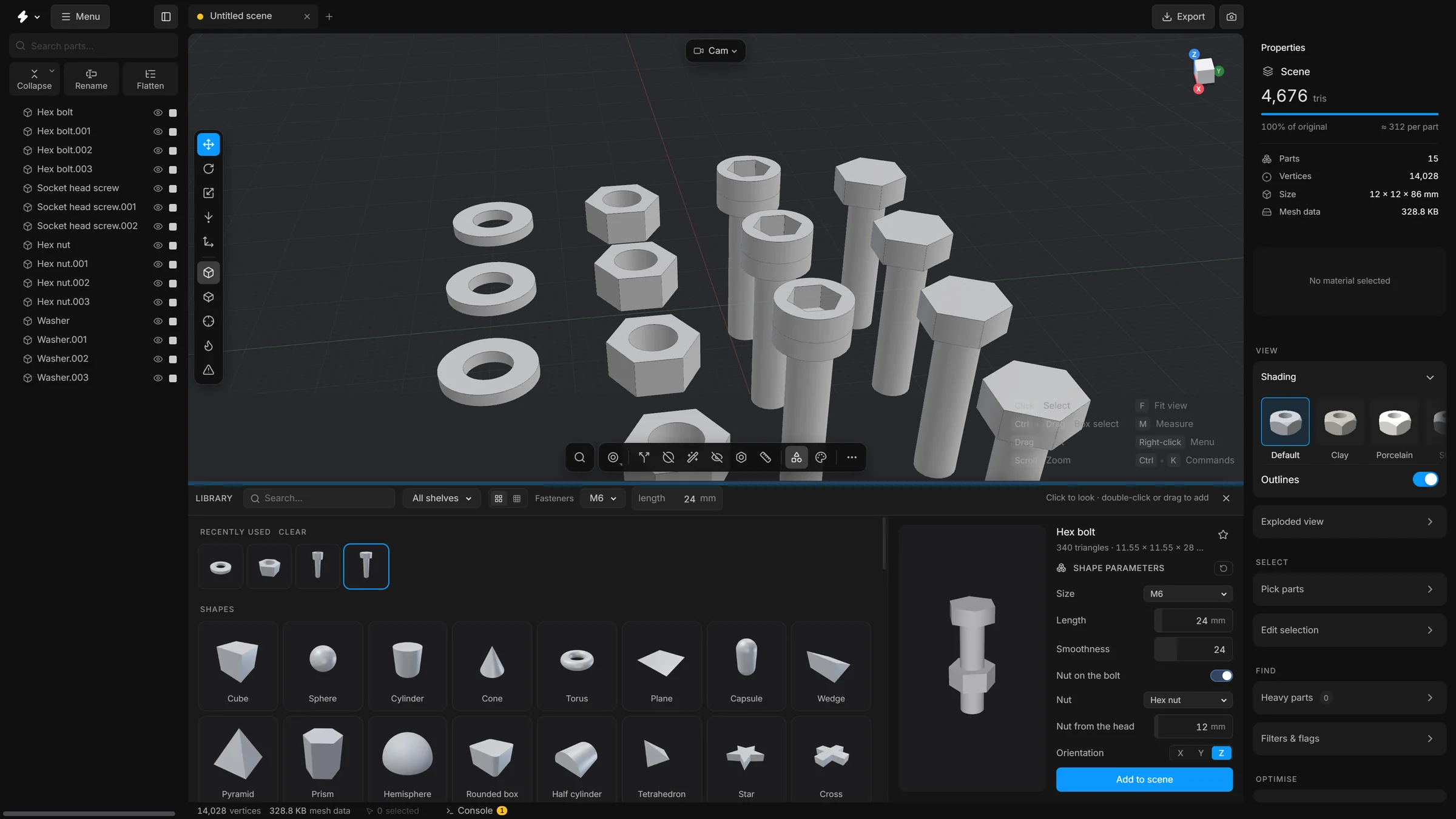
A hex bolt, an Allen screw, a threaded rod or an eye bolt can carry a nut.
- Select the bolt.
- In Shape parameters, switch on Nut on the bolt.
- Choose the kind in Nut: a hex nut, a wing nut, a castle nut and so on.
- Set Nut from the head: how far from the head the nut sits.
The nut is part of the bolt’s own shape. It follows the bolt’s size and length, stays one row in the tree, and cannot sit past the end of the thread.
Other ways to add a shape
- The search: press CtrlK, type
add flangeand press Enter. - The add button on the bottom toolbar, next to the search: a click adds the shape you used last, and holding the button down opens a choice of shapes.
Undo
Adding a part is an undo step, and so is each change to its parameters and each use of Bake geo.