
Colours and materials
Open the materials dock to see every material in the scene, recolour all the parts that share one, assign a material with a button or by dragging it onto a part, and let the dock float as a window.
A material is what a surface looks like: its colour, and how rough or metallic it is. Parts share materials. A CAD file with fifty grey brackets usually has one grey material that all fifty use. Change that material and all fifty change.
Open the materials dock
Press ShiftM, or click the palette button on the bottom toolbar. The dock slides up from the bottom of the window and shows every material as a small ball, with the number of parts that use it.
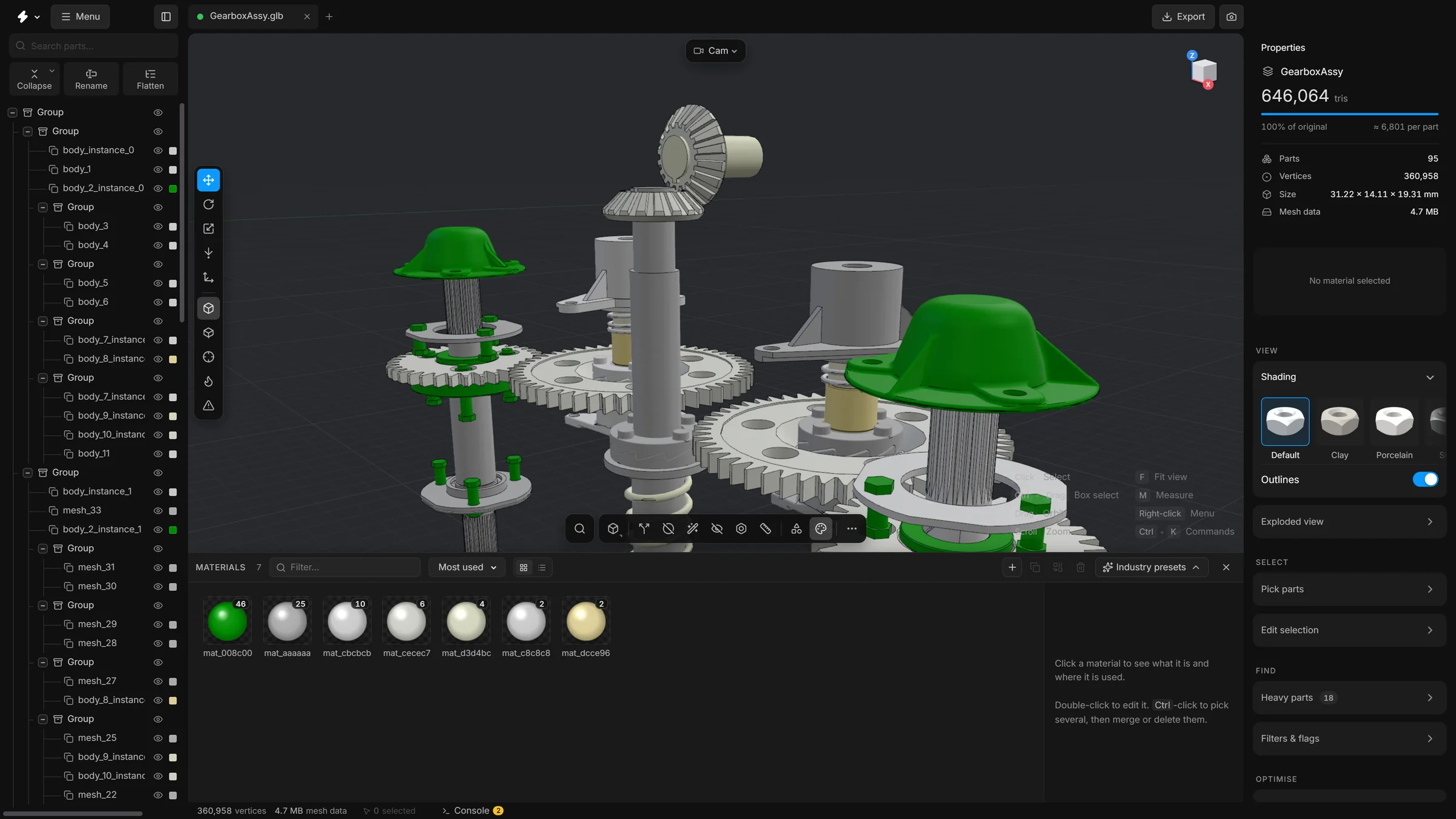
Find a material
- Type in Filter… to filter by name, by colour (as a hex code such as
#ff6600) or by type. - Choose the order: Most used, Most triangles, Name or Colour.
- Switch between a grid and a list with the two small buttons. Right-click them for a slider that sets the size of the pictures (44 to 96 px); double-click the slider for the usual size.
- Select a part in the viewport and look at Properties: it shows the part’s material. The small badge in the corner of that card is the number of parts that use the material.
Let the dock float as a window
The button Pop out as a floating window in the head of the dock turns it into a window over the view. Drag the window by its head to move it. Drag any edge or corner to resize it. The same button, now called Dock to the bottom, puts it back.
- A floating dock does not push the toolbar up and does not close the other dock. Materials and the library can both float, so the two can be open side by side.
- Where you left the window, and whether it floats, is remembered in this browser.
- Closing a floating window shrinks it toward the bottom toolbar, and opening it grows it back from there.
- With several windows open, the one you pressed or typed in last stands in front.
See where a material is used
- Click a material in the dock.
- The inspector at the right of the dock shows its colour, roughness, metalness and opacity, and how many parts and triangles use it.
- Press Select parts to select every part that uses it, or Isolate to see only those parts.
Recolour
- Double-click a material in the dock, or select it and press Edit in the inspector.
- Change the colour in the editor that opens. You can also change how rough or metallic the surface is.
- Every part that shares the material changes at once.
- Roughness
- How matt the surface is. Low is glossy, high is dull.
- Metalness
- How much the surface behaves like metal.
- Opacity
- How solid the surface is. Lower values are see-through.
The material editor is a small window of its own. It stays where you put it, also when you open another material in it, and it opens there again the next time. When it holds more than fits on the screen, its body scrolls. Drag its top or bottom edge to make it shorter.
Rename a material
Select a part that uses the material and double-click the name on the material card in Properties. The name turns into a field you can type in. An open material editor takes the new name at once. A single click on the card only picks the material (it is lit), a double-click anywhere else on it opens the editor, and Delete takes the picked material off the selected parts.
Give parts a different material
- Select the parts in the viewport or in the tree.
- Click the material you want in the dock.
- Press Assign in the inspector.
You can do the same with the mouse. Drag a material out of the dock, a tile or a row, and drop it in the view. It goes onto everything that is selected. With nothing selected, it goes onto the part you drop it on. That part is tinted while the material is over it. It is one undo step.
Make, copy, merge, delete
The buttons at the right of the dock’s header:
- New material
- The
+button. Makes a new material. If parts are selected, they get it. - New material from a preset
- Hold the
+down, or right-click it, and a list of ready-made looks opens. You can press, slide to a preset and let go in one move. The arrow beside the+opens the same list with one click. A preset makes a new material, assigned to the selected parts if there are any, in one undo step. - Duplicate
- Copies the picked material. The button is in the inspector at the right of the dock, and CtrlD does the same.
- Merge
- Turns several picked materials into one. Hold Ctrl and click to pick several.
- Delete
- Deletes the picked materials. The button is in the inspector at the right of the dock. The parts that used them are left with no material.
To merge two materials with the mouse, hold Shift and drag one onto the other. The dragged material stays and takes the other one over. A tip that starts with “Merge into” shows before you let go. Without Shift, a drop on another material does nothing.
While the materials window is the last one you worked in and a material is picked, CtrlC and CtrlD copy and duplicate the material, and CtrlV pastes a copied material as a new one. In that case the keys belong to the materials window and do not copy parts.
A right-click on a material gives the same commands, and one to copy its colour code. The material card in Properties has the same menu.
Good to know
- A new material is named after its colour, and the name follows the colour when you change it.
- Every change in the dock is an undo step.
- Drag the top edge of the dock to make it taller. Double-click the edge to reset it.
- While it is docked at the bottom, the dock shares its place with the library and the console, and they take turns. A floating dock stays open. With Same height for every dock on (it is, to begin with, under Settings, General), the materials dock, the library and Animate keep the height you drag one of them to.