Select parts
Click, add with Shift, toggle with Ctrl, drag a box, or let the app select by shape, colour or name.
Most tools work on the parts you have selected. A selected part gets an outline in the viewport and its row is highlighted in the parts tree.
In the viewport
- Click
- Select one part. The tree scrolls to its row.
- ShiftClick
- Add a part to the selection
- CtrlClick
- Add a part, or take it out if it was selected
- CtrlDrag
- Box select: draw a rectangle around parts
- CtrlShiftDrag
- Box select and add to what is already selected
- Esc
- Select nothing. A click on empty space does the same.
Click, Box or Brush
The selection-tool button in the left toolbar chooses what a drag does. A click goes to the next tool. To see the list, hold the button or right-click it: let go over a row to pick that tool, or let go on the button and click a row. With Edit mesh on, the same button picks pieces of a mesh instead of whole parts.
- Click
- The usual way: click a part.
- Box
- A plain left drag draws a rectangle. A part is picked only when one of its own triangles is under the rectangle, not when its bounding box is.
- Brush
- A left drag paints: every part under the circle is picked. Hold Shift to add to what is picked; without it, every stroke starts from nothing. Drag with the middle button to change the size of the circle: to the right is bigger, to the left smaller.
In every tool, Alt + drag turns the camera.
In the parts tree
- Click
- Select one part. Click a group to select every part inside it.
- CtrlClick
- Add or remove one row
- ShiftClick
- Select every row between the last one you clicked and this one
Let the app select
The selection bar under Properties in the right sidebar has buttons for All, Invert and Similar. All of these are in the command search (CtrlK) too:
- All
- Selects every visible part. CtrlA.
- Invert
- Selects what was not selected, and the other way round. CtrlI.
- Clear
- Selects nothing. Esc.
- Select similar
- Adds every part that has the same shape as the selection. Select one bolt, press it, and all the bolts like it are selected.
- Select all instances
- Adds every part that shares the exact same geometry as the selection: copies of one part, not just parts that look alike. Stricter than Select similar. It is in the command search, the … menu and the right-click menus.
- Select the original
- Selects the first part of a shape that has copies, frames it, and shows it in the tree.
- Make unique
- Gives each selected shared part a mesh of its own, so changing, reducing or deleting detail on it leaves the other copies alone. One undo step.
- By colour
- Selects every part that shares a colour with the selection.
- By name
- Asks for a pattern and selects every part whose name matches it. Typing
screwselects every part with screw in its name, in capitals or not. The pattern is a regular expression, a compact way to describe text, so some characters such as.and*have a special meaning. - By layer
- In the command search (CtrlK), Select by layer lists the CAD layers of the scene with how many parts are on each; click one to select them. A part's layer is also a badge in the Properties card, and a click on the badge does the same. Layers come from a STEP file imported with Keep layers on under What to read; a scene saved here keeps them.
Two tools select for you in a cleverer way: Select hidden parts and the size threshold of Delete small parts.
Find what you selected
- Press ShiftS to scroll the tree to the selected part and open the groups it is in.
- Press F to frame the selection in the viewport.
- The selection bar in the right sidebar counts the selected parts.
- When none of the selection is in the picture, a faint arrow at the edge of the view points to the side it is on. Click the arrow to frame the selection. See Move the view.
- Properties shows the triangle count of the selection and its share of the scene.
The right-click menu
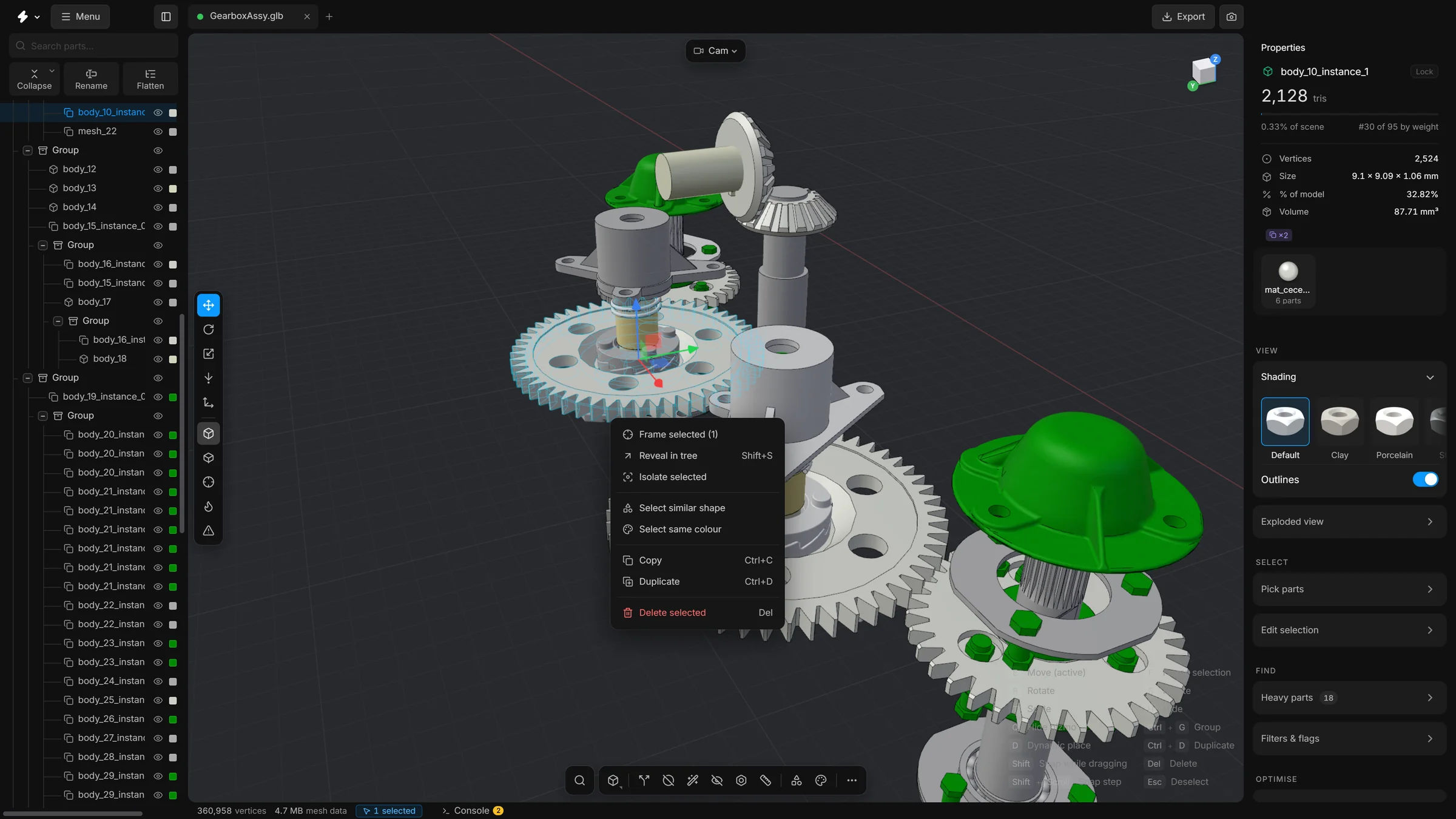
Right-click a part, in the viewport or in the tree, for a menu of things to do with the selection: frame it, isolate it, select similar parts, copy, duplicate or delete.
Copy and Paste with several groups selected makes a copy of each group, as a whole folder next to its original, with its own pivot. A group inside another selected group is copied along with it. One Undo takes back one group.