
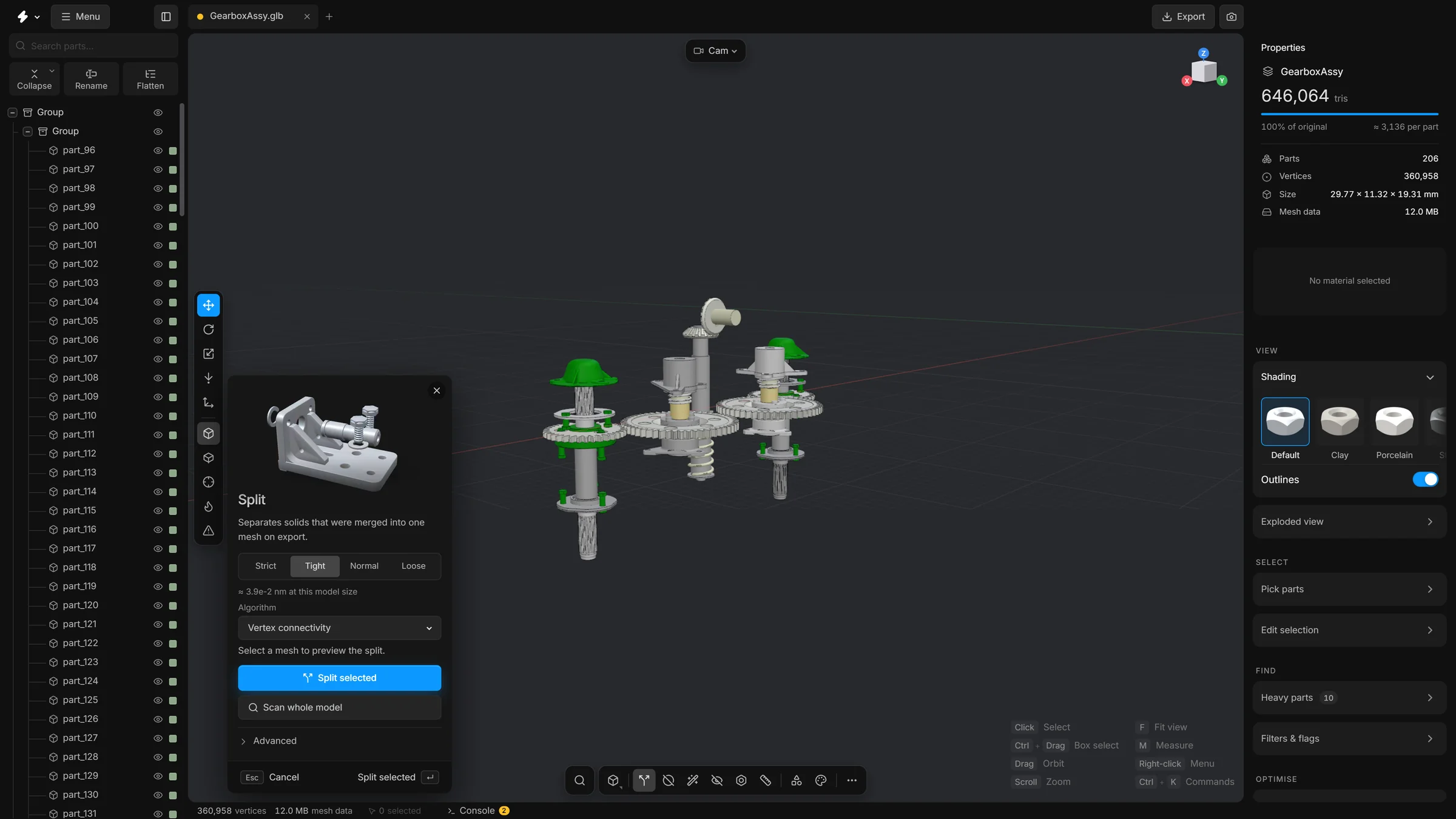
Splitv6
Take apart a mesh that arrived as one piece but is really several separate solids, or cut it into its faces, so each can be selected on its own.
Some files arrive with several solid pieces fused into one part: a bracket, its pin and two bolts as a single row in the tree. You cannot hide, delete or simplify one of them without the others. Split finds the pieces that do not touch and makes each one a part of its own. It can also cut a mesh into its faces, at the creases.
When to use it
When clicking one thing selects several things that are clearly separate objects. An STL file, for example, holds a whole model as a single mesh.
Steps
- Select the part that should come apart.
- Press X, or click Split on the bottom toolbar. The panel opens.
- Read the preview line in the panel. It says what the split would produce.
- Press Split selected, or Enter.
- The part is replaced by its pieces in the tree. A message says how many parts were made.
To check every part of the model at once, press Scan whole model instead.
What the options mean
A mesh from CAD keeps a separate point for each corner of each face, so the same place is stored several times. The four buttons at the top set how far apart two points may be and still count as one place (the weld):
- Normal
- The default. Points within one millionth of the model’s size are one place. Doubled points that drifted a little in rounding are joined, and no two separate solids of a real model are that close.
- Tight
- Only points that are exact duplicates are one place. Use it when Normal joins solids that should stay apart.
- Loose
- Points within 0.1% of the model’s size are one place, so solids that touch are joined on purpose. Use it when you want fewer, larger parts.
- Exact
- Nothing is joined. A mesh from CAD falls into its faces, hundreds of pieces of a few triangles. Only for a file you know shares its points.
Right under the four buttons is Weld tolerance. It is the same distance, set by hand, for when none of the four fits. The line below it says what the distance comes to at the size of your model.
Algorithm chooses how connection is decided:
- Bodies
- The default. A body is a closed surface. Where two solids were welded together on export, touching at a point, along an edge or on a face, each keeps its own surface and they come apart. A solid whose faces are tessellated at different densities stays whole.
- Vertex connectivity
- Triangles that share a corner point belong together, so everything that touches stays one part.
- Edge connectivity
- Triangles belong together only when they share a whole edge, so solids that meet at a single point stay separate; solids that share an edge or a face are joined.
- Spatial proximity (AABB)
- Groups triangles by where they are in space instead of how they are connected. Useful when the connections in the file are fused but the solids are still apart.
- Hybrid (vertex + spatial)
- Vertex connectivity first, then a second pass by position on any piece that still holds more than half of the mesh.
- Faces (split at creases)
- Every face becomes a part. Triangles that share an edge and lie within the Face angle of each other stay together, and every crease starts another part. A crease is an edge where the surface turns sharply. A flat face, or a smooth curved one, comes out as one part.
Two fields sit under the list:
- Face angle
- Shown only with Faces (split at creases). Two neighbouring triangles are one face if the angle between them is no more than this. It starts at 20°, which keeps a smooth curve as one face. 5° follows every facet of a curve, and 60° keeps only the sharp creases.
- Smallest part
- For every method. Pieces with fewer triangles than this do not become parts of their own: together they make one more part. It starts at 0, where every piece is a part. Raise it to go from thousands of parts to a few.
Good to know
The pieces of a split part stay in every group the part was a member of.
Undo
One split is one undo step: CtrlZ puts the part back together.
When a split would make hundreds of pieces of a few triangles each, the preview says so and the button asks first: that is the mesh cut into its faces, not into parts, and the cure is the Normal preset with Bodies, or a higher Smallest part.