
Scene tabs
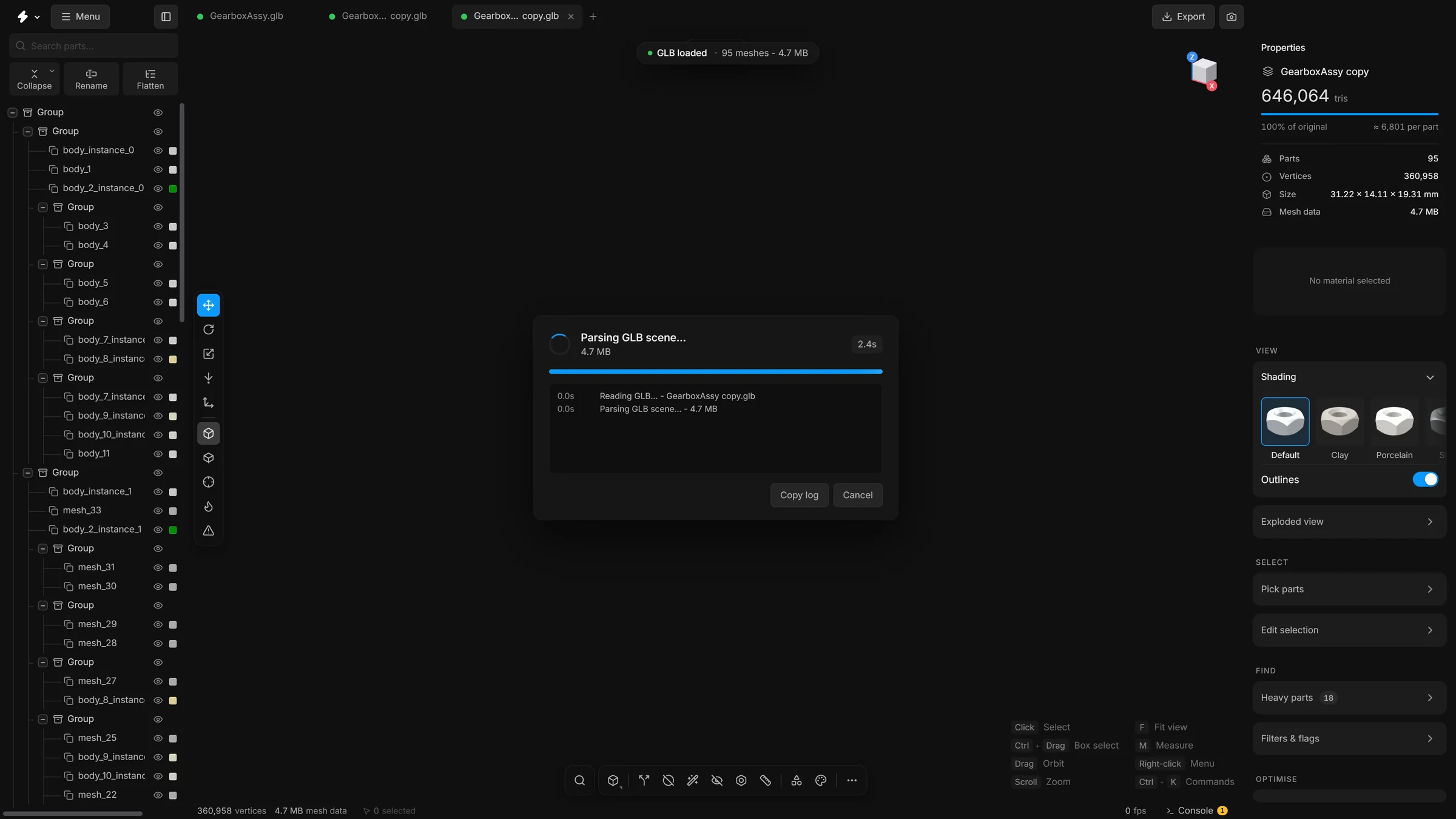
Each tab is a scene of its own. Open several files side by side, drop a file to add it or open it in a tab, drag tabs into order, and save from the tab’s dot.
A scene is everything you are working on in one tab: its parts, materials, camera and undo history. The tabs sit in the top bar, like tabs in a browser. Each one is a separate scene.
Open and close
- Click the
+after the last tab, or press AltN, for a new empty scene. A browser keeps CtrlN for itself: there it opens a new browser window. In the installed app, CtrlN works as well. - Opening a file never replaces a scene that has something in it. The file opens in a new tab.
- Click a tab to switch to it. Nothing is reloaded.
- Click the cross at the right end of a tab to close it. A click with the middle mouse button closes it too.
- If the scene has changes that are not saved, the app asks before it closes the tab.
Drop a file on the window
You can drop a file anywhere on the window. What happens depends on the scene you have open.
- The scene is empty
- The file opens there.
- The scene has parts in it
- A small question comes up: Add to this scene or Open in new tab. Add puts the parts of the file in the scene you are looking at, next to what is there. Open in new tab makes a scene of its own. Press Esc or click outside the question to do nothing.
The Import into scene… command in the menu (CtrlShiftO) always adds to the open scene. After an add, the new parts are selected, so you can see where they landed.
Read a tab
- Dot
- The first thing in every tab. Yellow means there are changes that are not saved. Green means the scene is saved. Faint means the scene is empty. Click the dot of the open tab to save the scene. It does the same as CtrlS.
- Name
- The name of the scene. Double-click it to rename the scene. A long name is cut in the middle, so the end of it and the type of the file stay readable.
- Cross
- Closes the tab.
Every tab has the same width, and nothing in a tab moves when you pick it.
Right-click a tab
A menu opens with the things you can do with tabs:
- Duplicate scene
- Opens a copy of that tab’s scene in a new tab. It is dimmed when the scene is empty.
- Close all
- Closes every tab. CtrlShiftF4.
- Close others
- Closes every tab except this one.
- Show in Explorer
- Shows the file the scene was opened from in your file manager. It is dimmed for a scene that did not come from a file, and it needs the app’s own server.
- Open…
- Opens a file, as CtrlO does.
- Open recent
- A list of the files you opened lately.
Close all and Close others ask just once for all the scenes that have unsaved changes. Duplicate scene, Close all and Close others are in the search (CtrlK) too.
Copy parts into another scene
Select parts, press CtrlC, switch to another tab and press CtrlV. The parts stand where they stood, with their colours, materials and pictures, and they are selected afterwards. A small pill on top of the view says what was pasted and from which scene. It is one undo step.
- The parts arrive as loose parts. The folders they were in, shared copies and the settings of shapes stay behind. Parts that shared one mesh in the first scene still share it in the new one.
- If a group is selected in the scene you paste into, the parts go into it.
- A part copied from an exploded view lands where it rests, not where it was pulled to.
- The scene you copied from has to still be open.
A second window
New window in the menu opens the app again in a window of its own, the size of the one you are in. Copy and paste work between the two windows in the same way, as long as both are open on the same address. If the browser blocks the new window, allow pop-ups for the app’s address and try again.
Put tabs in order
- Press a tab and pull it sideways.
- The tab rides with the pointer and the others slide over to make room.
- Let go. It drops into the nearest place.
Press Esc while you are still holding the tab to put it back where it was.
Sidebars across tabs
When you switch tabs, the widths of the sidebars and the folded left sidebar stay as they were in the tab you came from. To let each tab keep its own layout, switch off Same sidebars in every tab under Settings, General.