
Docs·Common jobs, start to finish
How to remove bolts and screws from a STEP assembly
Take the bolts, screws, nuts and washers out of a CAD assembly before it goes on the web. Select one, select the rest, check, delete, and undo if needed.
Fasteners are a large part of a CAD assembly. A model can hold hundreds of bolts, nuts and washers, and each carries thousands of triangles that nobody sees from a normal viewing distance. Taking them out makes the model much lighter. It also leaves your hardware out of the file you share.
On the rear derailleur used in these pictures, twelve bolts and screws held 129,460 triangles, about 12% of the whole model.
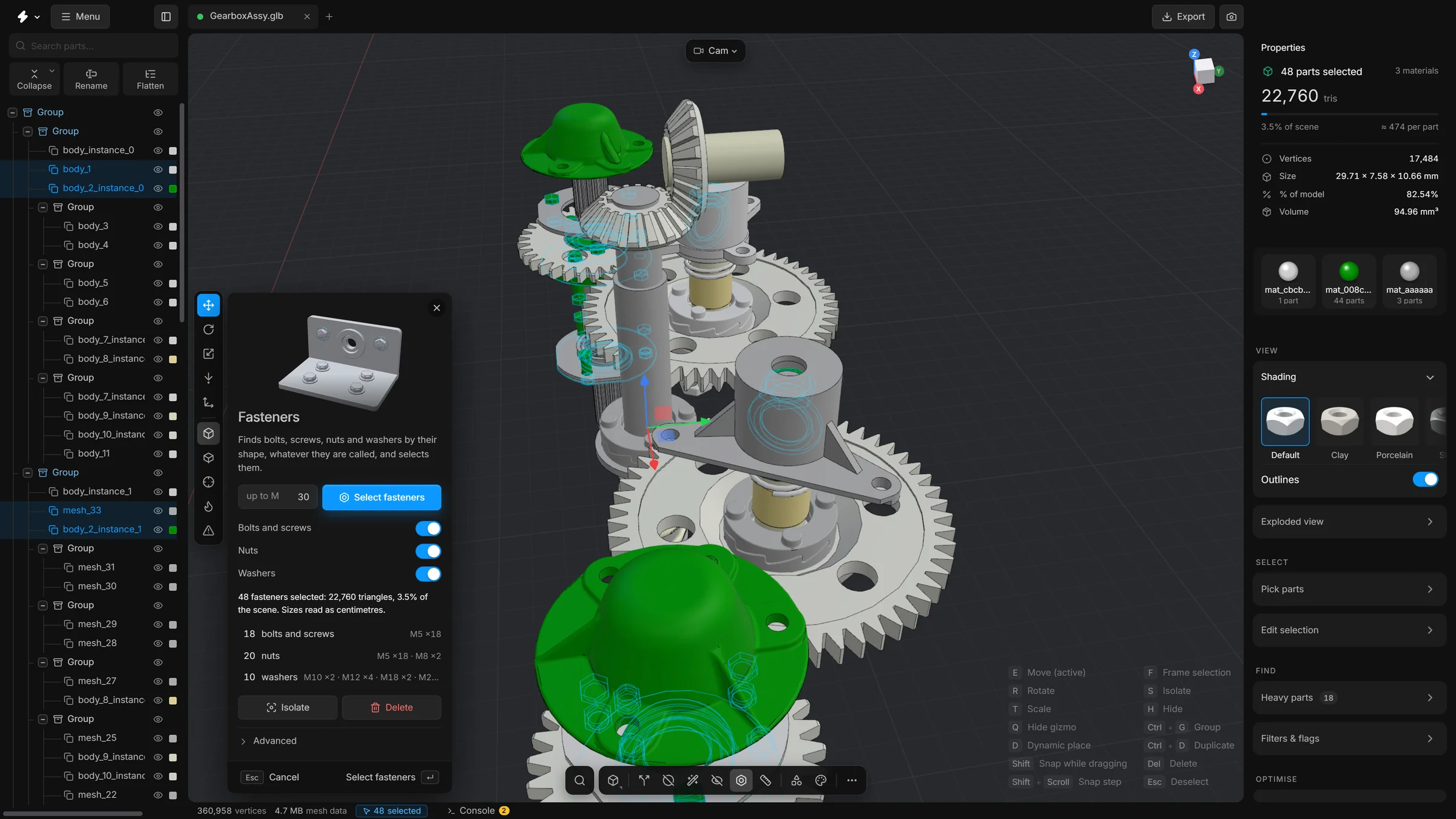
The quickest way is the Fasteners card on the bottom toolbar: it finds bolts, screws, nuts and washers by their shape, whatever they are called, and selects them. The steps below do the same by hand, one kind at a time.
The steps by hand
- Open the STEP file. See Open your first file.
- Click one bolt in the viewport or in the parts tree.
- In the Selection bar of the right sidebar, press Select similar (the copy icon). Every part with the same shape as the bolt is selected, so all copies of that bolt are selected at once.
- Press S to isolate the selection. Look at it. Only the bolts should be left on screen.
- Press S again to come back, then press Del to delete them.
- Do the same for the next kind of bolt, then for the nuts and the washers. Bolts of different lengths are different shapes, so each size is one round.
- Press AltH to show everything, and look at the model once more.
Every delete is one undo step. CtrlZ brings the bolts back. The Optimisation report shows how many triangles you saved.
Other ways to find the hardware
- By name
- Open the command search (ShiftC), choose Select by name (regex) and type
bolt|screw|nut|washer. It selects every part with one of those words in its name, in capitals or not. This only works when the CAD names are honest, and they often are not:Part_0031tells you nothing. A short word such as nut can also match other names, so isolate before you delete. - Delete small parts
- Removes every part below a size you set, with a preview. Hardware is small, but so are other things. Press Isolate and look before you delete. See Delete small parts.
- Select hidden parts
- Finds the screws inside a housing, because nobody can see them. To keep hidden structure and remove only hardware, type part of the name in Name contains. See Select hidden parts.
When you want the bolts to stay
If the bolts must be visible but light, do not delete them. Select them the same way, then use Smart fit with Cylinder. A bolt becomes a plain cylinder of the same size in the same place.
After they are gone
- Bolt holes stay in the plates they held. Remove holes closes holes in flat faces, so the surfaces look whole again.
- Take out the bolts that hold a cover only if you do not mind a cover that seems to float. From outside it usually looks fine.
Next
To remove hardware and everything else that is hidden before you send a model to someone, read How to make a CAD model safe to send to a customer.