
Features
Make heavy CAD models light. Free, private, on your own machine.
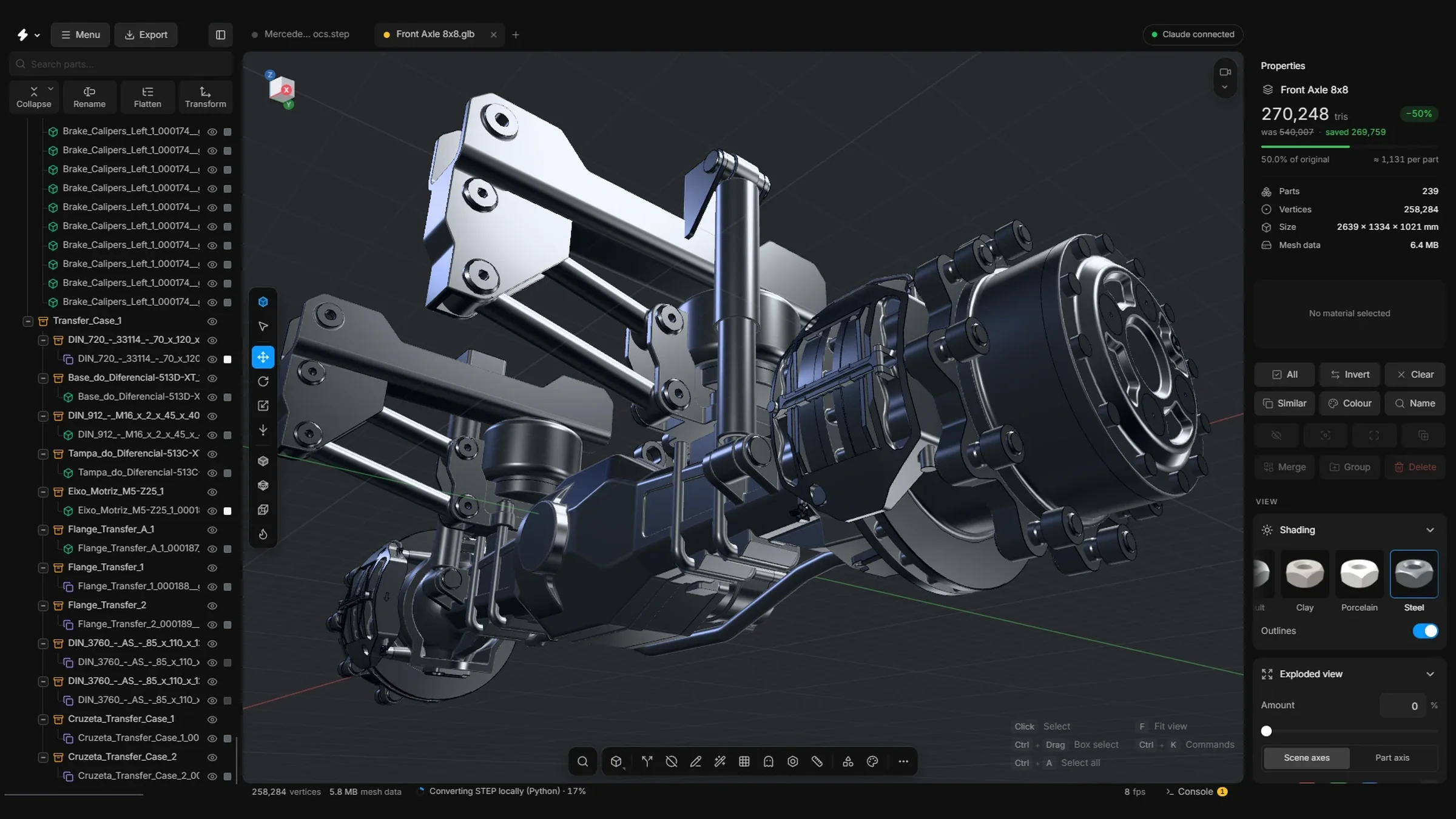
Before and after
Drag the line. Same axle, far fewer triangles.
On the left is the front axle as it came, 250,075 triangles. On the right is what the app’s own simplifier makes of it. Pick how far to go and drag the line to compare.
Model: Mercedes-Benz Arocs 8×8 front axle. Trademarks belong to their owners; not affiliated. The right side is a real run of the simplifier the app’s Decimate uses; the numbers are counted, not typed.
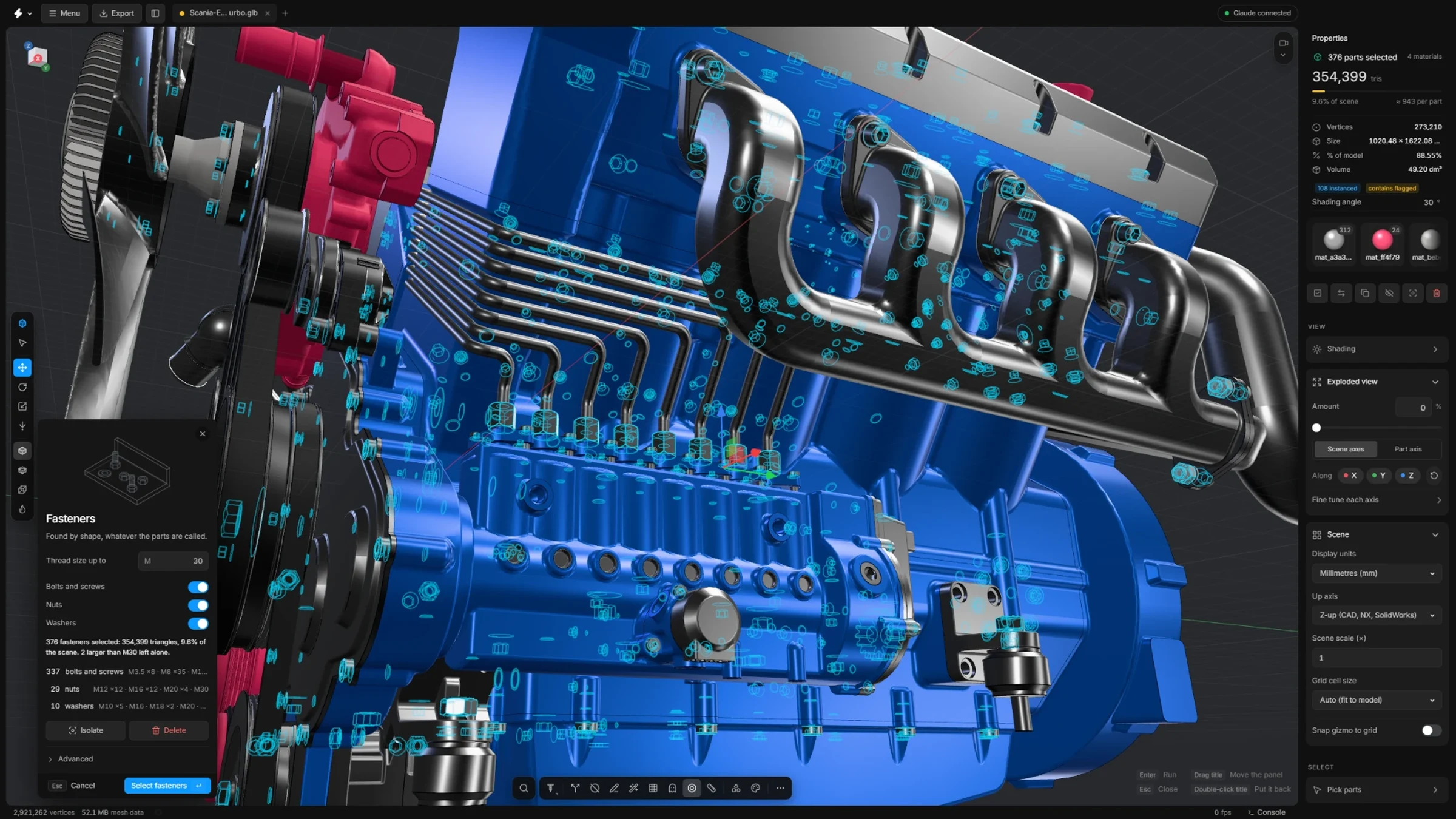
Fasteners
Find every bolt. Take it out.
This engine is 1,295 parts, and 376 of them are bolts, nuts and washers. Find them, take them out, and watch what that does to the triangle count. Drag to turn the model.
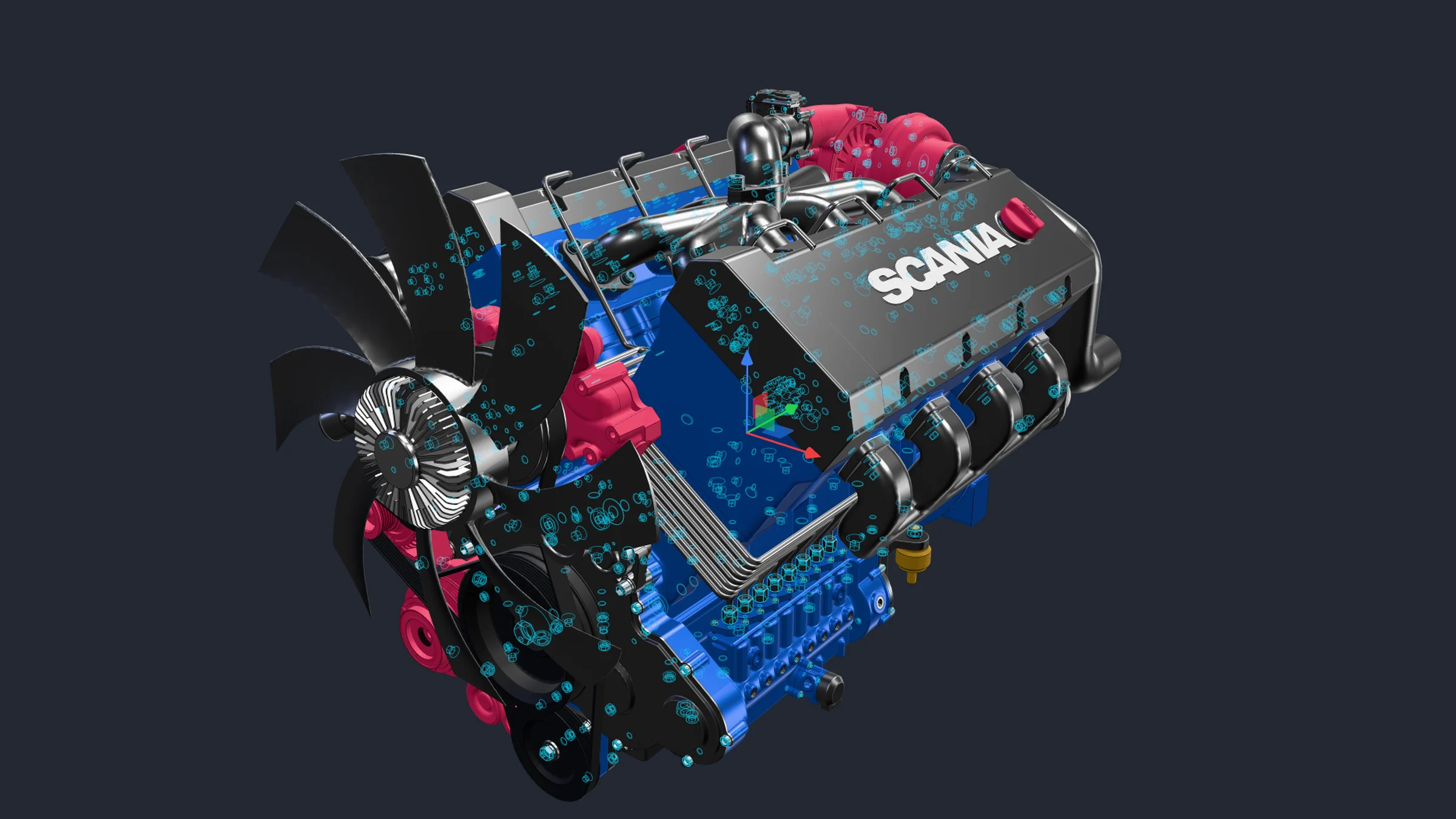
Model: a Scania V8 engine, a light copy made for this page. Trademarks belong to their owners; not affiliated. Here the fasteners are picked out by part name; the app finds them by their shape, in one click.
Mesh clean-up
The tools this app is for.
Bolt holes nobody will see. Screws sealed inside housings. Parts drawn twice. Found by shape, gone in one click, back with one undo.
Smaller files
5 MB in. 1 MB out.
Same model, same shape, a fraction of the file. Send it, load it, share it.
Gearbox, Meshopt
79% smaller file size 4.95 MB → 1.03 MBThree sample models
Gearbox, file size
- Meshopt
- Small and quick to open. About a fifth of the size, built for the web.
- Draco
- The smallest file. About an eighth of the size, for when every kilobyte counts.
- Faster to draw
- Same file size, smoother on screen. Opens in any viewer.
Measured on the Khronos sample models (Gearbox, Reciprocating Saw, Two-Cylinder Engine) with glTF Transform 4.1: Meshopt at high, Draco at its defaults. 1 MB = 1,000,000 bytes. Very light meshes can come out larger with Draco.
The library
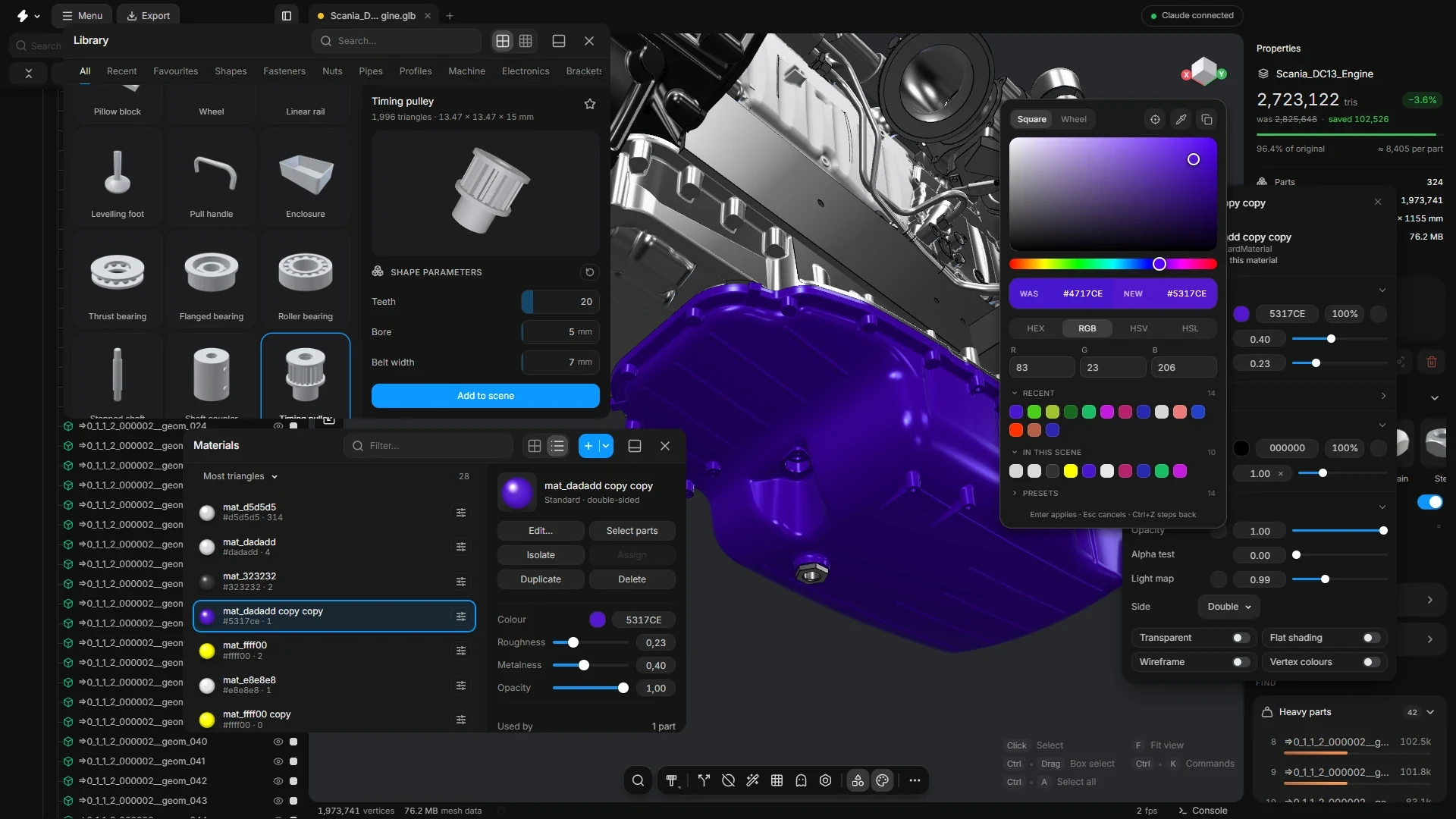
112 parts, ready to use.
Bolts, nuts, pipe fittings, bearings, brackets, gears, a servo, a circuit board. Set the size, then drag it in.
 Cube
Cube Hex bolt
 Hex nut
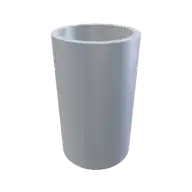 Tube
Tube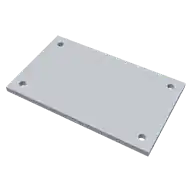 Plate
Plate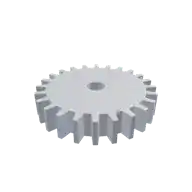 Spur gear
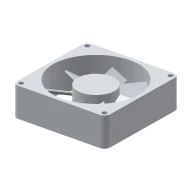 Axial fan
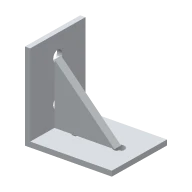 Angle bracket
 Sphere
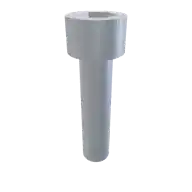 Socket head screw
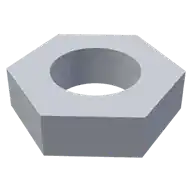 Thin nut
 Pipe elbow
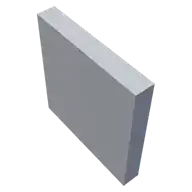 Flat bar
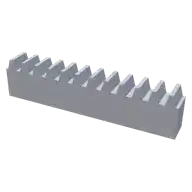 Gear rack
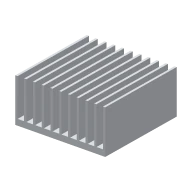 Heatsink
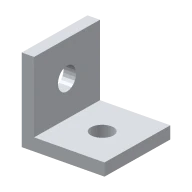 T-slot bracket
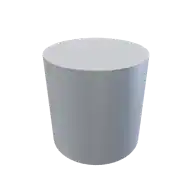 Cylinder
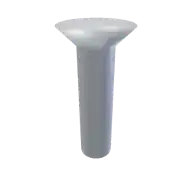 Countersunk screw
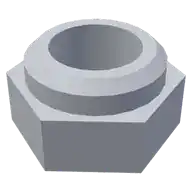 Lock nut
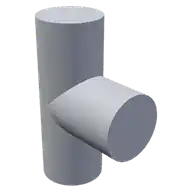 Pipe tee
Import
Open and convert
- Reads the whole assemblyColours, names and the whole part tree come through.
- Finds repeatsSame shape, any angle: stored once, drawn many times.
- Rebuilds the surfacesSet the detail in millimetres, or as a share of the model.
- You set the tessellationBig parts fine, screws light. You choose the detail by part size.
- Smooth from the CAD surfacesFillets blend, cylinders have no seam, sharp edges stay sharp.
- CompressesMeshopt turns your GLBs into a fraction of the size.
Make it light
Clean up and optimise
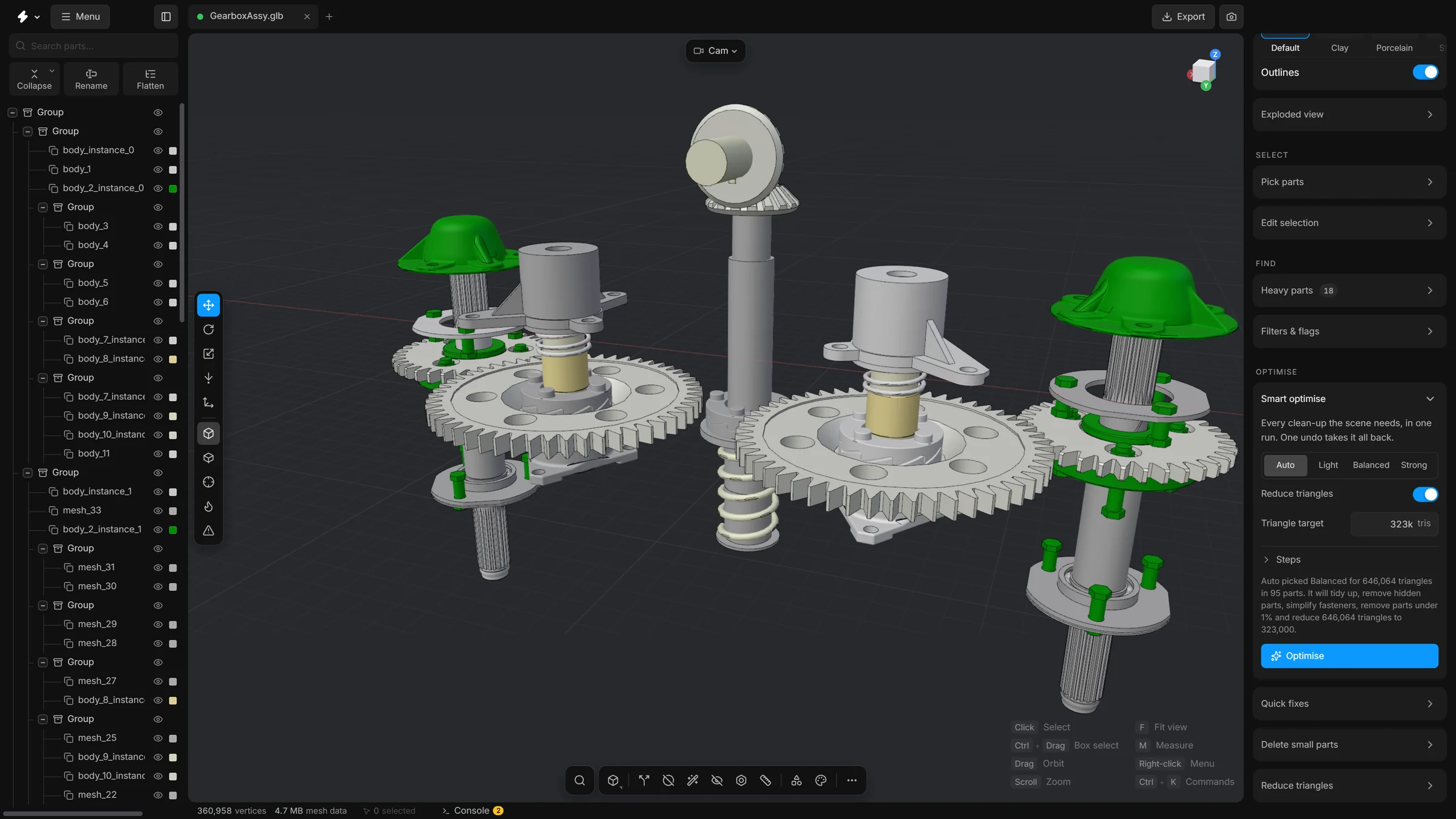
- Smart optimisev1Scans the model first and lists what it found, with Highlight and Isolate for each. Then every clean-up in one press. One undo.
- Fastenersv6Every bolt, screw, nut and washer, found by shape.
- Select hidden partsv2The parts nobody can see, found in one click.
- Remove hidden facesv1Faces that never show, gone: inside housings, where parts meet.
- Quick decimate (B)v4Slide down a column of levels and watch the part change.
- Fit to budgetv4Name a triangle count. The heaviest meshes go first.
Make it right
Repair and tidy
- Remove holesv15Bolt holes, slots and pockets closed, with no ring of points left behind.
- Remove floating piecesv2Plugs, shavings and stray dots, gone.
- Repair meshv2Doubled points, empty triangles, flipped faces: fixed.
- Splitv6One fused lump, back to the solids it was, or a mesh with several materials, one part for each.
- Stacked copiesv1Parts drawn twice in the same place, removed. Only true copies go.
- Align to floorA model that arrived on its side, stood up, with a preview first.
Go inside
Edit mesh
- Points, edges, polygonsPick the pieces of a mesh. Keys 1 to 4 switch mode.
- Click, Box, BrushThree ways to pick. Double-click takes the whole loop.
- Move what you pickedMove, turn and scale pieces with the gizmo. One undo.
- Dissolvev4Points out, surface closed, no hole.
- Weld and Fillv1Join points. Close a hole from its rim.
- Planarize and Straightenv1Flat polygons. Straight lines of edges.
Big assemblies
Find and organise
- Built for big assembliesTen thousand rows, still smooth.
- Search and filtersFind parts by name, with the small ones tinted.
- Search (Shift + C)Commands, settings, parts, library: one box. Typos and initials still find it.
- Batch rename (F2)Templates, regex, live preview, presets.
- Select by ruleName, material, size, triangles: pick by rule, with a live count.
- Typo-proof part searchWords in any order, quotes, or, minus, >5000 triangles. A typo still finds it.
Make new parts
Build and arrange
- A Draw tool (L)Pen, rectangle, circle, arc, polygon, freehand: on any plane or on a part’s face.
- Align partsAlign or spread parts and whole groups along X, Y and Z, with a gap if you want one. One undo.
- Sweepv2Carry a profile along a path. Scale, twist, closed ends. The result is a normal part.
- A library of 112 partsBolts, nuts, pipe fittings, bearings, brackets, gears, a servo. Set the size, drag it in.
- Exploded viewOne slider pulls it apart, along the axes you choose.
- Dynamic place (D)Drag a part over a surface: it rests on it and turns to face it.
Send it on
Export and deliver
- GLB and glTFDraco or Meshopt compression. Textures embedded if you want.
- FBX, USDZ, OBJ, STL, PLYThe common 3D and AR formats, with mm, cm, m and inch presets.
- Check against where it’s goingTest the scene against web, Shopify, AR Quick Look or phone-app limits.
- Parts listA CSV bill of materials: every part and its size.
- Lighter, or just faster to drawMeshopt cuts a GLB to about a quarter. Or keep the size and draw faster.
Notes
Review together
- Notes on the modelPress N, click a spot, write. A numbered pin stays on the part, with a picture of the view it was written from.
- Replies, edits and resolveAnyone can answer, edit or resolve. An edit keeps what it replaced; a delete leaves who deleted it.
- Every change has a nameType your name once. Every note, comment and edit shows who and when, and each note has a history.
- Notes in the scene fileSaved with the scene and opened with it. Export never writes notes, so a team comment cannot reach a customer.
- Bring in another copy’s notesTwo people each worked on a copy? Bring in the other file and the notes are joined. Nobody’s words are lost.
- A report anyone can openThe notes as one HTML page with pictures, who said what and the history. No app needed.
The app
Make it yours
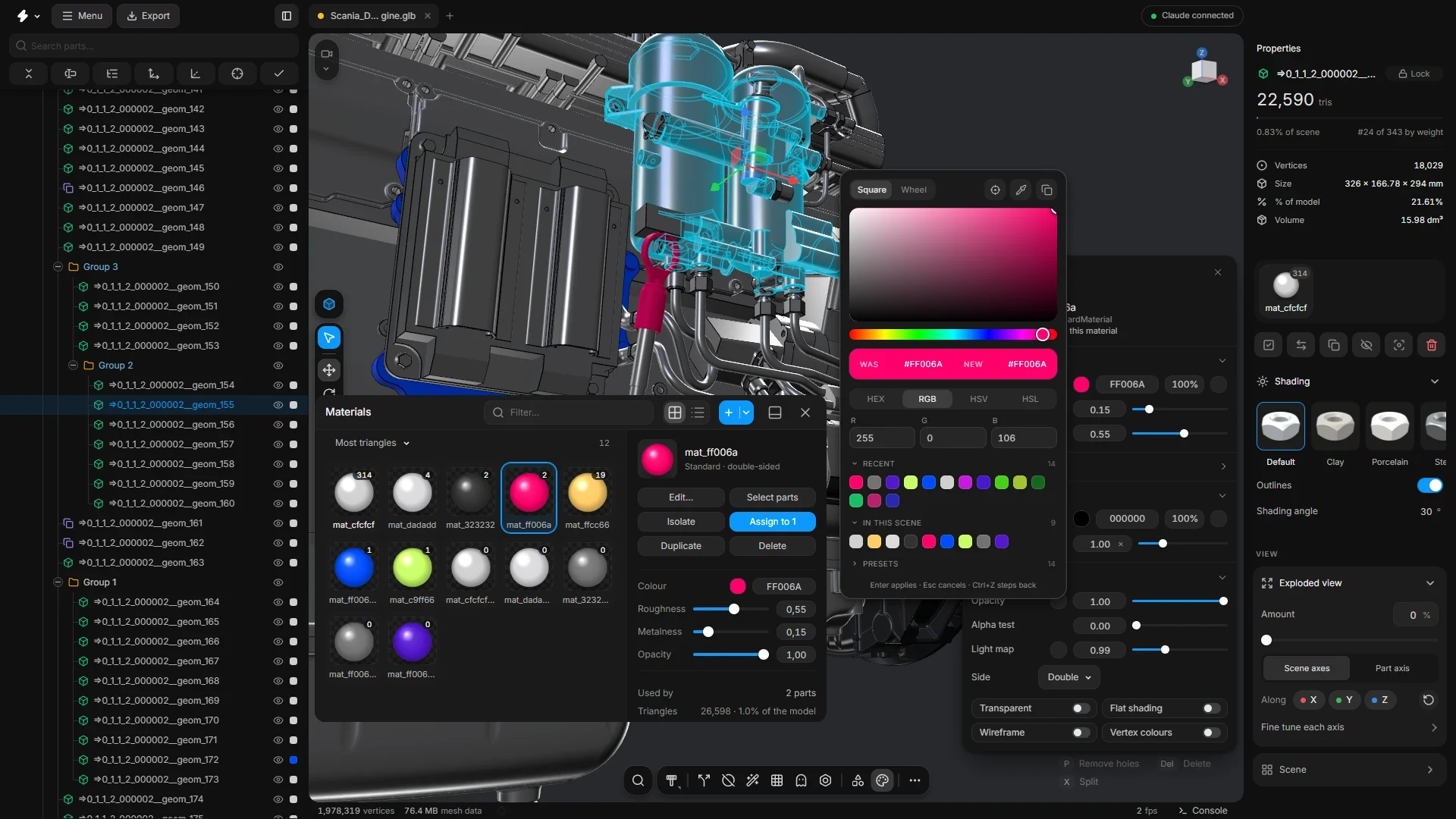
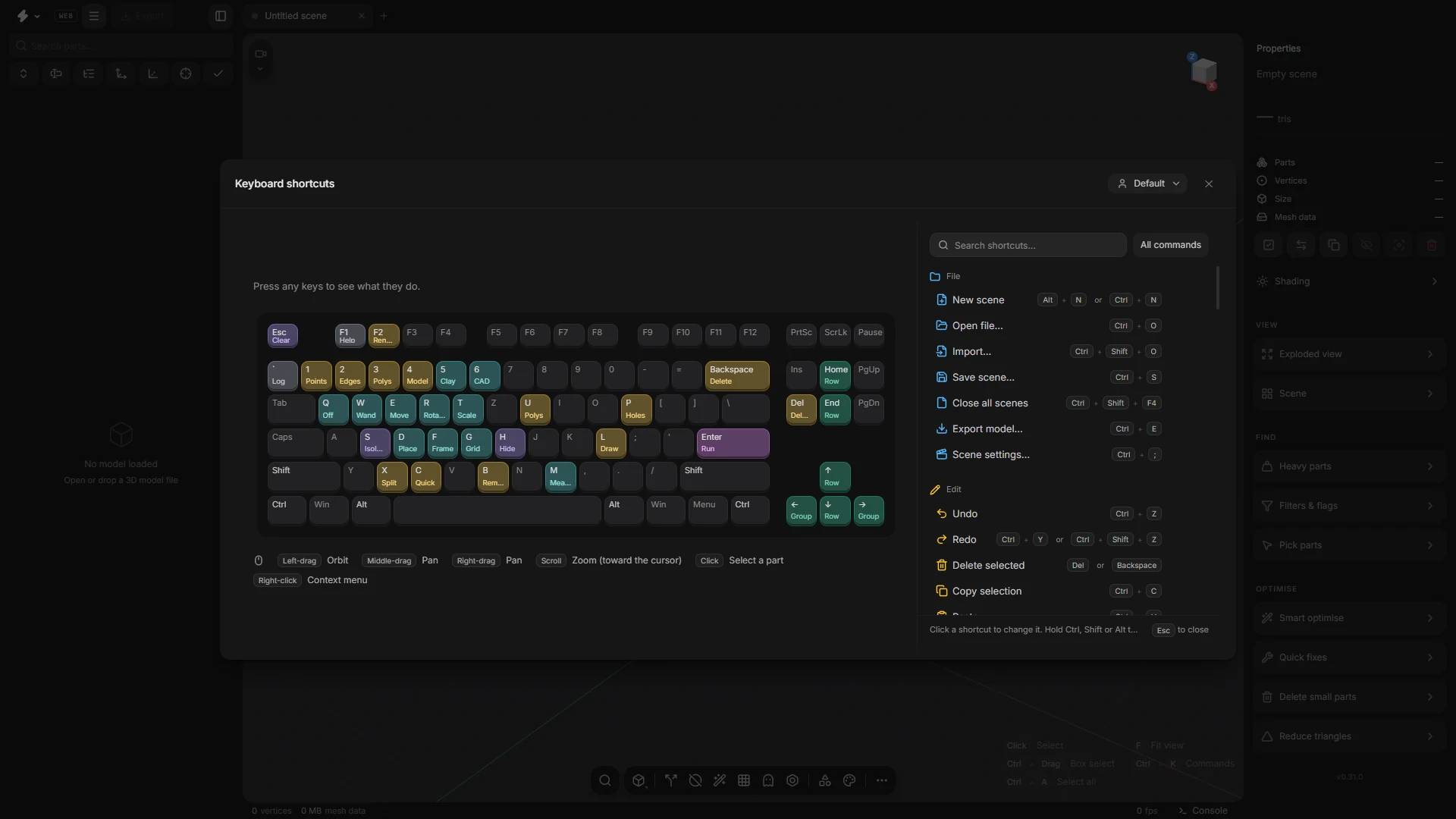
- Keyboard remapperThe shortcuts window is a keyboard: lit keys carry their command, and holding Ctrl, Shift or Alt shows what those do. Click a shortcut, press new keys, and a key that is taken warns you first. Keep your set in a profile, one per person.
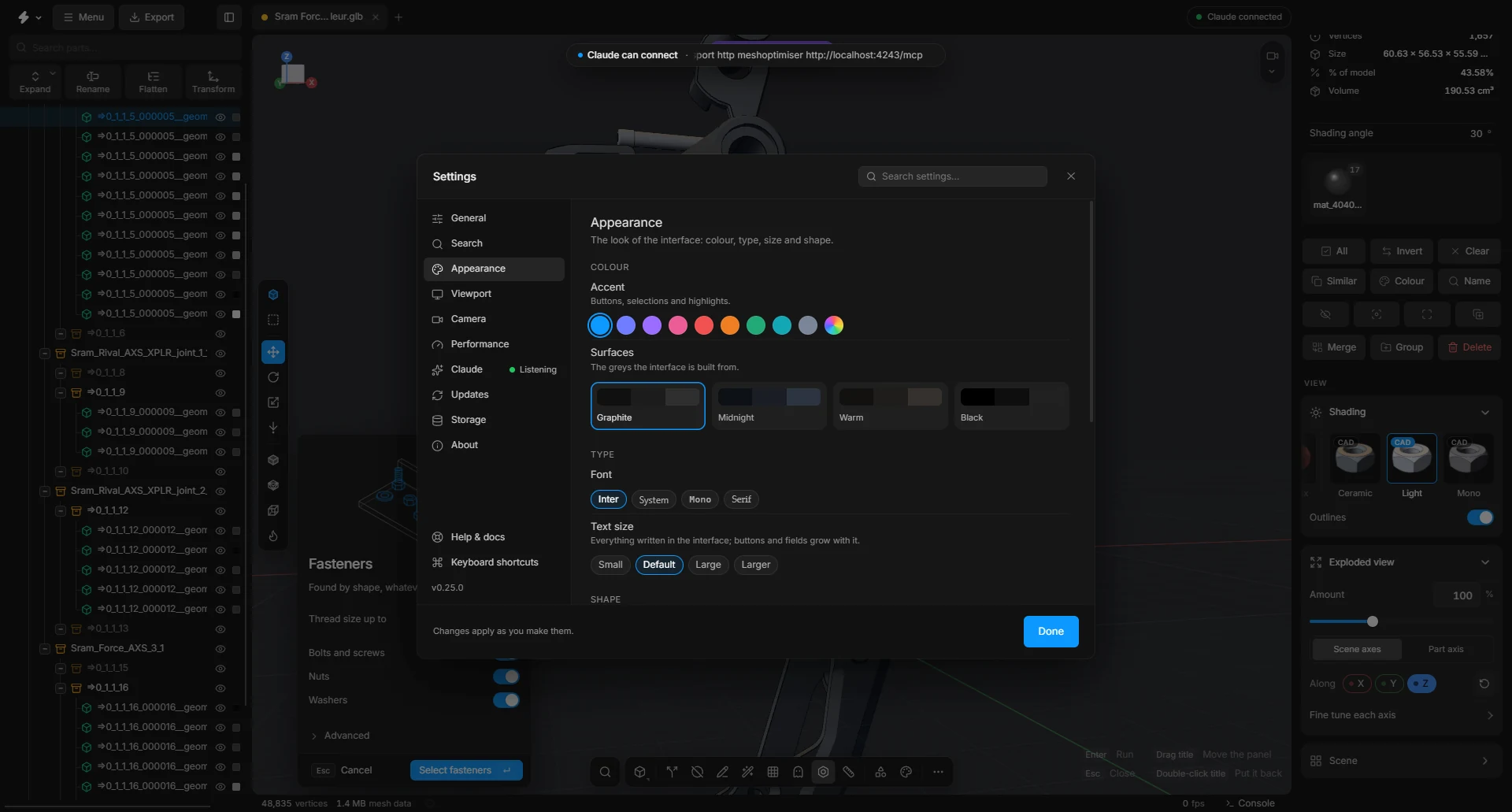
- A look of your ownAccent colour, tones, font, text size, corners and density.
- Numbers you dragDrag any number sideways to change it, or click to type. Right-click to reset, step, double or halve it.
- Cards over the modelTools open as cards you can move. Enter runs, Esc closes.
- Scene tabsEach tab is its own scene. Opening a file never replaces your work. Copy parts from one tab, or one window, into another.
- Floating Materials and LibraryPop either out as a window, move it, resize it. Both open side by side.
Ask for it
Work with Claude
- Just askSay “find the bolts and hide them” or “get this under 5 MB”. Claude does it with the app’s 78 tools.
- You decideIt asks before it changes anything. Deleting always asks. Every change is one undo.
- Try it firstSixteen steps can be tried first: done, shown, taken back.
- One request, a whole jobUnder 5 MB, or ready for web, Shopify, AR or phone, with a before and after picture.
- A whole folderEvery model in a folder: opened, optimised, exported, closed. Stop it any time.
- Pictures for a clientClean renders up to 8192 px, several angles, a plain or transparent background, plus a turntable film.
The whole list
Every feature, by name.
Every capability of the app, grouped. The best of it is above.
All 186 features
Open and import
- STEP files
- IGES files
- BREP files
- GLB and glTF files
- FBX files
- OBJ files
- 3MF files
- STL files
- Stored conversions reused
- Copies found in other formats
CAD conversion
- Colours and hierarchy
- Geometry only mode
- Instance overrides
- Smooth shading from CAD surfaces
- Drop small parts on import
- Share identical shapes
- Background conversion jobs
- Tessellation control
- CAD data kept
Command-line converter
- step2glb command line
- Batch convert a folder
- Batch report as CSV
- Level-of-detail files
- Parallel mesh building
- Meshopt through gltfpack
- Simplify while converting
- Quality and size targets
Clean up and optimise
- Smart optimisev1
- Optimise recipes
- Fit to budgetv4
- Remove holesv15
- Remove floating piecesv2
- Remove hidden facesv1
- Select hidden partsv2
- Fasteners finder
- Stacked copiesv1
- Delete small partsv1
- Small by diagonal, side or volume
- Fix degenerate parts
- Deduplicate geometry
- Recompute smooth normals
- Repair meshv2
- Optimisation report
- Merge parts
Reduce triangles
- Decimatev5
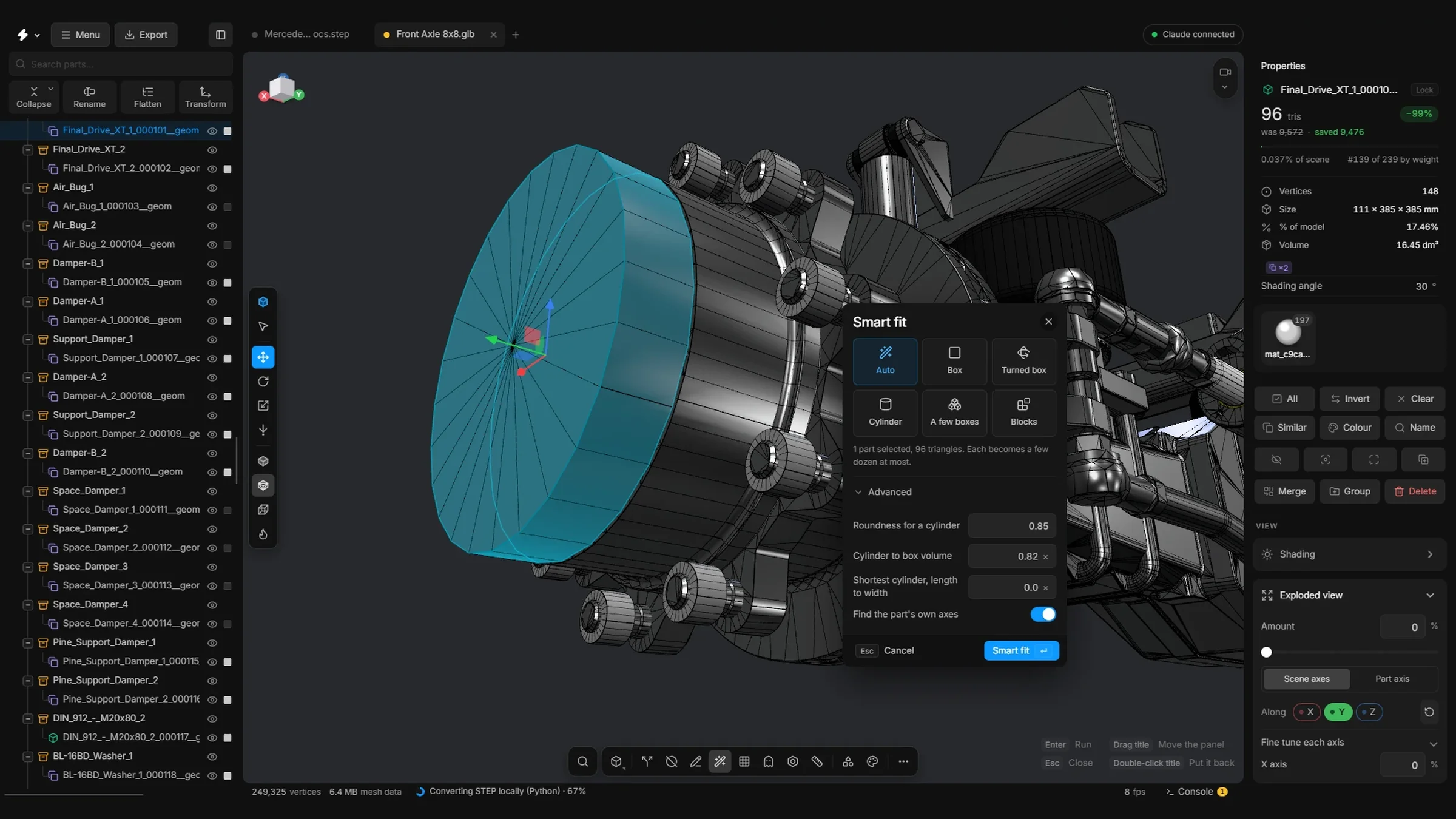
- Smart fitv3
- Triangulationv3
- Quick decimatev4
Edit mesh
- Move picked pieces
- Extract polygons
- Reverse normals
- Quads and n-gons remembered
- Pick points, edges and polygons
- Planarize and straightenv1
- Weld and fillv1
- Edit mesh bar
- Live box pick
Selection and visibility
- Select similar
- Select all instances
- Select the original
- Make unique
- Select by colour
- Select by name
- Select by rule
- Arrow to a selection out of view
Parts tree
- Highlight small parts
- Batch rename
- Flatten
- Lock a part or group
- Point to find
- Tidy the tree
- Part search language
Transform and place
- Exact position, rotation, size
- Dynamic place
- Align to floor
- Recentre on origin
- Bake gizmo transforms
- Snapping
- Align parts
- Transform several parts
View and camera
- Orbit around selection
- Exploded view
- Sun direction gizmo
- HDRI environments
Looks and shading
- Heatmap view
- Clay view
- CAD view
- Edge outlines
- Studio lighting
- Material looks
Materials
- Roughness, metalness, opacity
- Material presets
- Merge materials
- Drag a material onto the model
- Shift-drag to merge
- Share materials by colour
Draw and sweep
- Draw tool
- Edit a line
- Bezier, Cubic, B-spline, Linear
- Round or bevel corners
- Mirrored copy
- Sweepv2
- Lines in GLB and glTF
Library and build
- Library of 112 parts
- Parametric parts
- A bolt with its own nut
- Electronics shelf
- Brackets and connectors shelf
- Bake geo
Measure and inspect
- Measure two points
- Triangle share bar
- Rank by weight
Export
- USDZ export
- Parts list as CSV
- Draco compression
- Meshopt compression
- Merge into one mesh
- File name pills
- Check against a target
- Export size estimate
Scenes and history
- Scene tabs
- Separate undo per tab
- Save scene
- Non-destructive editing
Pictures and film
- Custom size to 16,384
- Turntable video
Search and commands
- Command search
- Typo-tolerant search
- Calculator in the search
- Quick wand
- Numbers you can drag
- Movable search
- Resizable search
Keyboard
- Picture of the keyboard
- Change any key
- Key profiles
Work with Claude
- Let Claude connect
- MCP over local HTTP
- 78 tools
- Four permission switches
- One undo per change
- Dry run
- Optimise to a target
- Before and after picture
- Folder batch optimise
- Clean renders to 8192 px
- Turntable by Claude
- Model health check
- Run saved recipes
- Search the app’s help
- Six playbooks
- Ready-made jobs
- Claude mode (alpha)
- Three-way permissions
Updates and recovery
- Updates inside the app
- Go back one version
- Automatic rollback
- Recovery copies
- Safe mode
Under the hood
- WebGPU renderer
- WebGL2 fallback
- OpenCascade CAD kernel
- Assembly tree from XCAF
- Pose-independent instancing
- Adaptive tessellation
- meshoptimizer simplifier
- Background mesh workers
- BVH-accelerated picking
- GPU-drawn outlines
- Virtual scrolling tree
- Lower resolution while moving
- Auto quality
- Reads compressed GLBs
- Assimp in WebAssembly
- glTF Transform on demand
- Visibility from many directions
- Fastener recognition by shape
- Hole versus boss detection
- Coplanar face joining
- Regression self-tests
- Open source, MIT
Privacy and offline
- Runs on your computer
- Nothing uploaded
- No account
- Works offline
- Original file never changed
Pick how you run it.
Web opens a sample gearbox first and needs a window 960 px wide. Best in Chrome: Safari on a Mac can lag.