MeshOptimiserBeta Download

Claude·New

Don’t click. Ask Claude.

Describe the job in plain words. Claude runs the app’s own tools on the model you have open, asks before it changes anything, and every step is one undo.

How it works

Three steps, then just ask.

  1. 01

    Switch it on

    Settings › Claude › Let Claude connect. A pill in the top bar shows it is on.

  2. 02

    Add it to Claude

    One line, once, in a terminal on the same computer. Nothing is installed.

  3. 03

    Ask

    Describe the job. Claude tells you what it did.

Add it to Claude
claude mcp add --transport http meshoptimiser http://localhost:4242/mcp

The command is for Claude Code. Another program that can add an HTTP MCP server takes the same address: http://localhost:4242/mcp. If the launcher printed a different port, use that number.

Lighten the engine
  1. This engine is too heavy for the web. Take the bolts out of the way, then get the whole thing under 300,000 triangles.

  2. I’ll start by looking at what is in the scene.

    • scene_summary1,295 parts, 3,682,816 triangles
    • find_fasteners376 bolts, nuts and washers selected
    • hide_parts376 parts hidden
  3. The fasteners are out of the way. To get under 300,000 triangles I need to take triangles from the parts that can spare them.

    • fit_to_budgettarget 295,000

    Waiting for you to allow it in MeshOptimiser

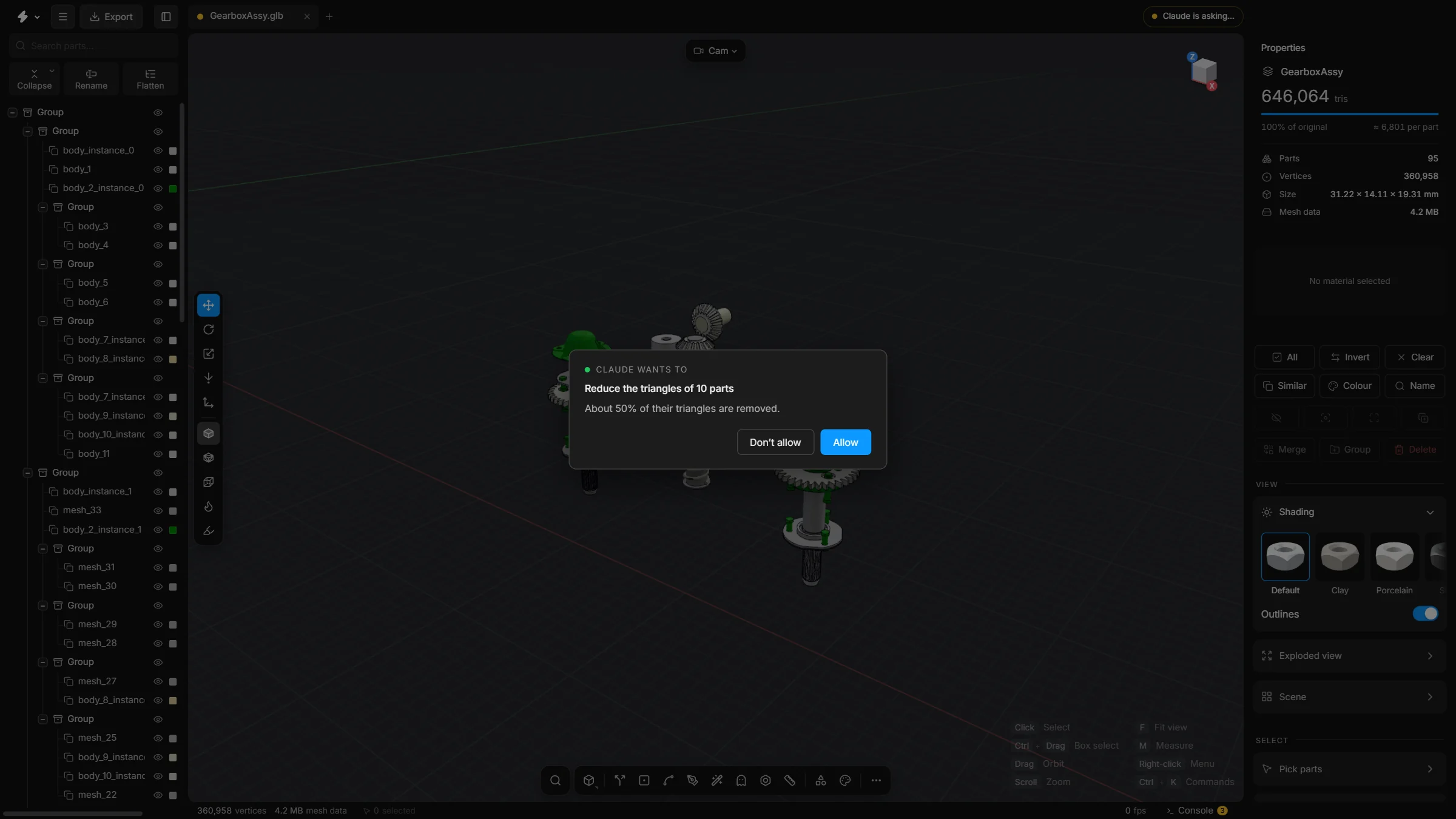
    Claude wants toReduce the whole scene to 295000 trianglesThe parts that can best spare triangles give them up. Undo (Ctrl+Z) takes it back.
    Don’t allowAllow

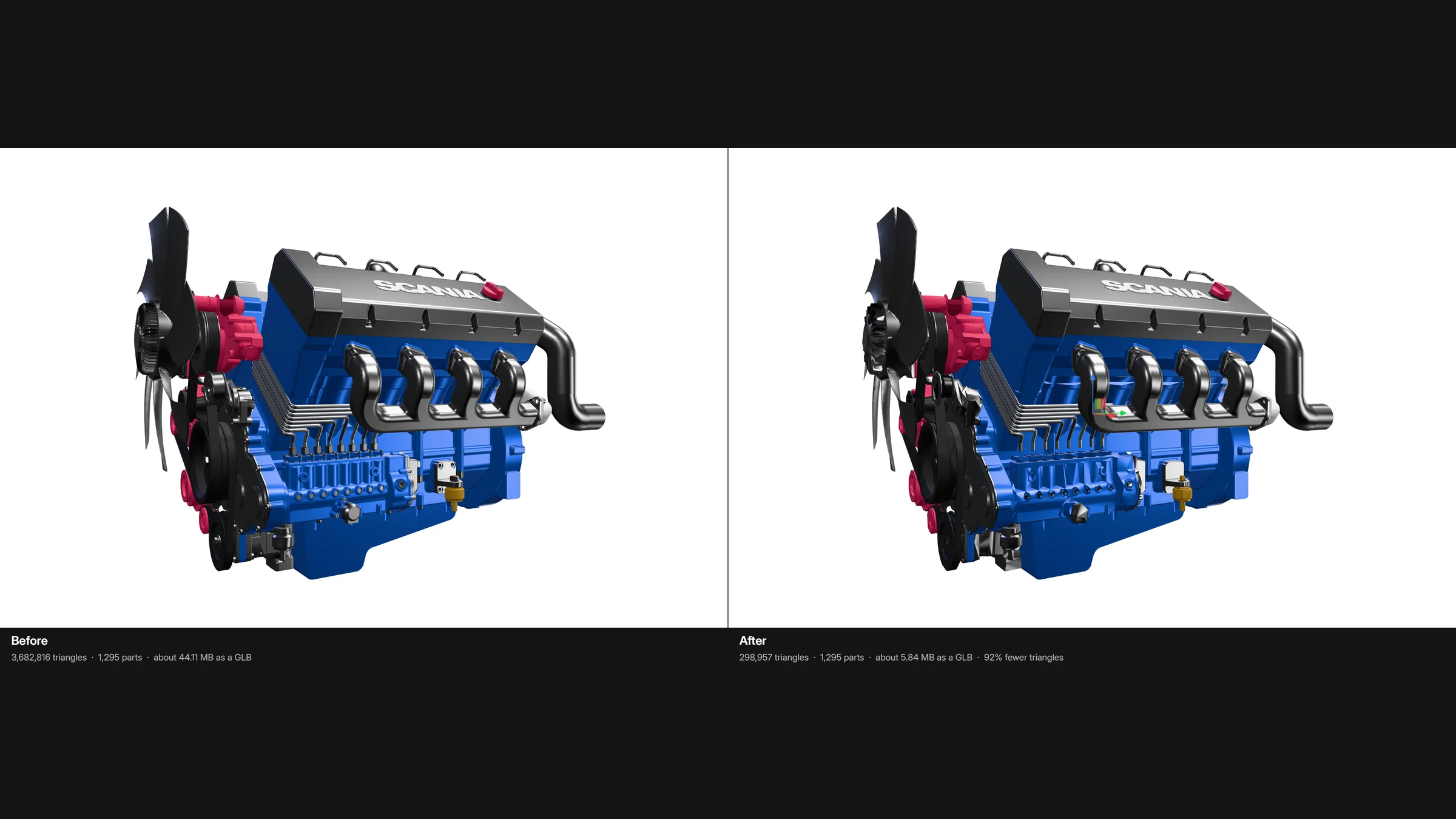
    3,682,816 → 298,957 triangles, 91.9% fewer

  4. Done: 298,957 triangles. Both steps are in the app’s undo history, so Ctrl + Z takes them back.

Reply to Claude…
An example session on a Scania V8 engine (1,295 parts; not affiliated with Scania). The numbers are what the app returned. The 3D part beside it is a light copy made for this page.

What Claude can do

The app’s own tools, in Claude’s hands.

See the scene as you see it.

  • scene_summaryThe file, parts, triangles, size, view mode and explode state.
  • list_partsEvery part with its triangles, size and colour; sorted, filtered, paged.
  • get_selectionWhat is selected right now.
  • check_modelA health check: where the weight is, what is tiny, hidden or doubled, and what to do first.
  • optimisation_reportOpened against now: triangles, parts, draw calls, memory and file size.
  • estimate_export_sizeWhat a GLB would weigh, against the limits for web, Shopify, AR and a phone.
  • list_materialsThe materials, with colour and how many parts use each.
  • list_recipesYour saved Smart optimise recipes.
  • sayA short message to you in the Claude mode feed: what Claude is about to do and what it found.

Quick looks and clean pictures, saved on your computer.

  • screenshotA quick look at the viewport, so Claude can see what you see.
  • render_imageA clean picture up to 8192 px, from one or several angles, saved as PNG.
  • compare_imagesOpened and now, side by side, with the numbers under each.
  • turntable_videoOne slow turn round the model, saved as a video. Animations play in it.
  • animate_partsChoose which parts or groups move, and how: spin, swing, noise, a path or an oscillation for pistons and pumps. They keep running until removed.

Select, hide, turn and explode. Nothing is changed, so none of it asks.

  • select_partsSelect by id or part of a name; add or remove.
  • select_allSelect every visible part, or invert the selection.
  • hide_partsHide parts.
  • isolate_partsShow only these parts.
  • show_allBring everything back.
  • frame_selectionFly to the selection.
  • set_camera_viewPerspective, top, front, side, or fit the model; then turn, tilt and zoom.
  • photo_modePhoto mode: lights, backdrop, finish, depth of field and every effect, the focus on a part.
  • set_view_modeSolid, wireframe, x-ray, heat, clay or CAD.
  • set_explodePull the parts apart along any axes, 0 to 300%.
  • set_gridShow or hide the grid.

Questions with an answer.

  • find_fastenersBolts, screws, nuts and washers by shape, counted per kind and thread size.
  • find_hidden_partsParts nobody can see from outside, selected for you to check.
  • find_stacked_copiesParts drawn twice in the same place; the extra copies are selected.
  • measure_partsThe distance between two parts, and the gap between their boxes.
  • select_similarThe other copies of a shape: every washer of one kind.
  • select_by_colourEvery part with the colour of the chosen ones, or of a colour you give.
  • select_by_materialEvery part that uses a material.
  • select_by_layerEvery part on a CAD layer, when the STEP file was imported with Layers on.
  • list_groupsThe groups in the tree.

Each asks first and is one undo. Add dry run to try one without keeping it.

  • optimise_to_targetasksThe whole scene under a size, or ready for web, Shopify, AR or a phone, in one call.
  • smart_optimiseasksThe app’s whole clean-up in one run and one undo: light, balanced or strong.
  • run_recipeasksYour own saved settings: the same clean-up you ran last time, on this model.
  • decimateasksReduce the triangles of chosen parts, to a target or by a share.
  • fit_to_budgetasksReduce the whole scene to a triangle budget.
  • fill_holesasksClose bolt holes, slots and pockets up to a size.
  • remove_hidden_facesasksDelete faces that can never be seen from outside.
  • repair_meshasksJoin doubled vertices, remove empty triangles, turn faces the same way.
  • clean_upasksRemove empty parts, share duplicate geometry, repair bad triangles.
  • merge_partsasksMerge parts into one mesh.
  • merge_by_colourasksOne mesh per colour.
  • split_partsasksBreak a mesh into its separate pieces.
  • smart_fitasksReplace a part with a box, a cylinder, a few boxes or blocks of the same size.
  • untriangulateasksFewer triangles on flat faces, with no change of shape.

The notes people leave on the model. Claude writes under the name Claude, and never signs a scene off.

  • list_notesThe notes on the model: number, title, kind, priority, who it is for, and the last messages.
  • get_noteOne note in full, with every message and its history.
  • show_noteOpen a note and fly the camera to where it is.
  • add_noteasksLeave a note on a part or on the whole scene.
  • reply_to_noteasksReply in a note’s conversation.
  • update_noteasksResolve, retitle, retag, set priority or due date, assign, edit its own messages.
  • export_notesThe notes as Markdown, a spreadsheet, JSON or the one-page report.

Many files, one after another. Your scene is not touched.

  • list_folderThe model files in a folder: name, path and size.
  • batch_optimiseasksOpen, optimise and export every file in a folder. Can be stopped.

Names, groups and positions.

  • list_libraryThe app’s library of standard parts: bolts, nuts, pipes, profiles, gears and more.
  • remove_floating_piecesasksDelete loose bits that float free of a part, up to a size.
  • make_uniqueasksGive parts that share one mesh a mesh each, so one can change alone.
  • select_instancesSelect every part that shares its shape with the chosen ones.
  • lock_partsasksLock parts so they cannot be moved or edited by hand, or let them go.
  • add_library_partasksAdd a standard part to the scene.
  • rename_partsasksRename by id, or find and replace, prefix and suffix.
  • group_partsasksPut parts in a group.
  • ungroupasksDissolve a group.
  • duplicate_partsasksCopy parts.
  • transform_partsasksMove, turn and scale parts.
  • recenter_modelasksPut the middle of the model at the origin.
  • align_to_floorasksStand the model on the floor.

Always asks, even when you switch asking off for the rest.

  • delete_partsasksDelete chosen parts.
  • remove_small_partsasksDelete every part under a size.

On your own computer; nothing is uploaded.

  • open_fileOpen a model from a path on this computer.
  • save_sceneSave the scene as a scene file, edits included, before a drastic step.
  • export_modelSave a GLB, glTF, FBX, USDZ, OBJ or STL, or use a preset for the web, AR, Unreal, Unity or printing.

The app’s own knowledge, on demand. Answered without the app being open.

  • search_docsSearch the playbooks and the help articles by words or by a symptom.
  • read_docRead one article or playbook in full.

The tabs and the undo history.

  • scene_tabsList the scene tabs, switch, open a new one.
  • undoTake back the last steps.
  • redoDo them again.

Claude mode·Alpha

Follow Claude as it works.

Hide the app and watch a feed instead: what Claude says, every call it makes, every picture it takes, with your model beside it. An early version, so expect rough edges.

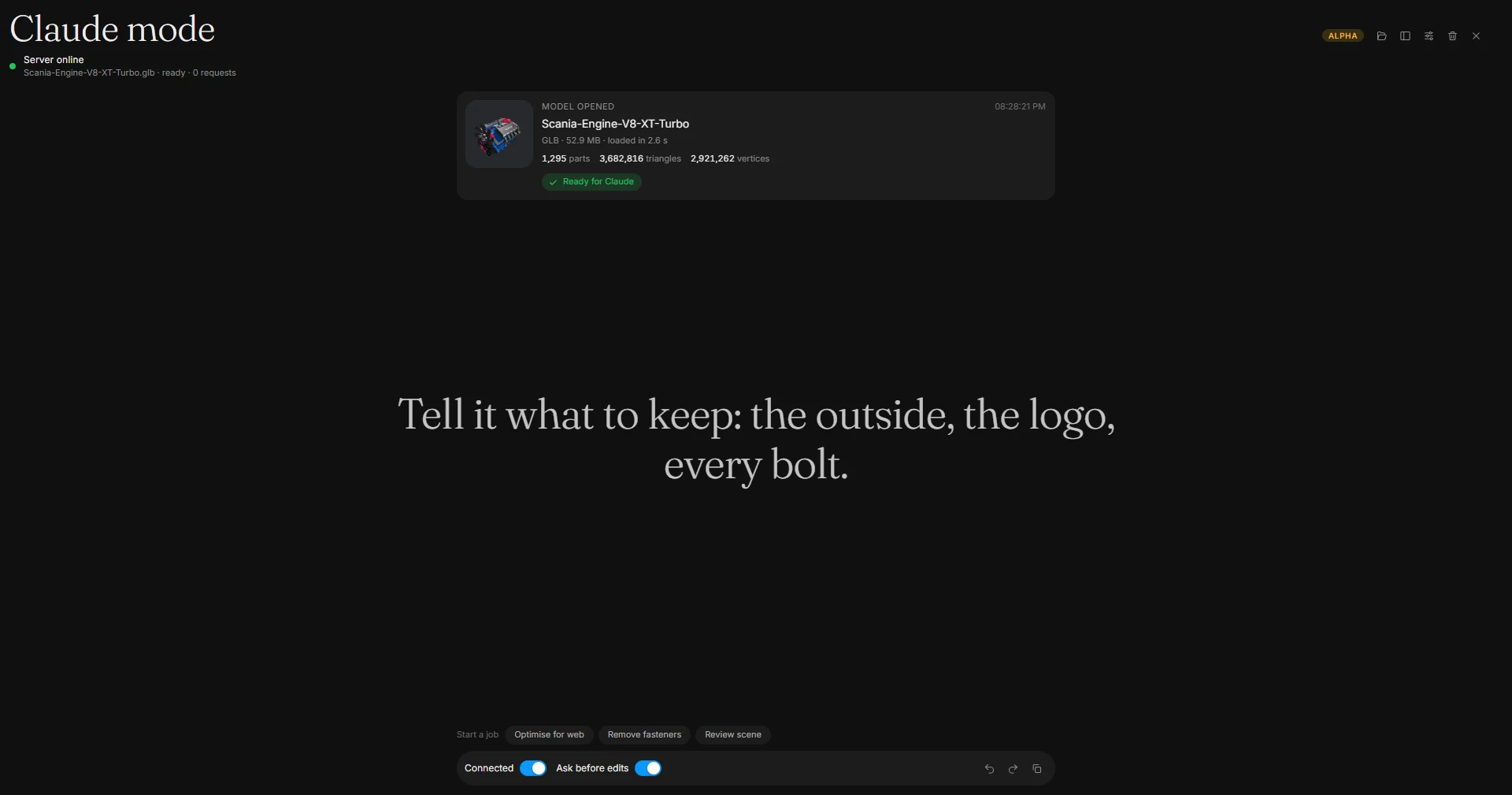
MeshOptimiser: The first screen of Claude mode: a Scania V8 engine is open, ready for Claude, and the viewport is hidden so the feed has the whole window.
The first screen of Claude mode: a Scania V8 engine is open, ready for Claude, and the viewport is hidden so the feed has the whole window.
A feed, not a window
What Claude says, each call it makes with what came back, and each picture it takes, in the order they happen.
Your model beside it
A card with the picture, name, size, parts and triangles, and a green “Ready for Claude”. Show it or hide it.
Open a model there
The folder button lists your recent files, the latest marked Continue. You can drop a file on the feed.
Loading you can follow
A card floats above the controls with the step, the percent, the time and a Cancel button.
Start a job in one press
Three buttons copy the command of a ready-made job: optimise for web, remove fasteners, review the scene.
Stay in charge
Switches for Connected and Ask before edits, Undo and Redo, and a Stop button while a long job runs.
Plain words, not code
Each call says what it did: “Selected 194 parts”, “Deleted 194 parts · 23.5% fewer triangles”. The reply as it came is under Details.
Claude can talk to you
It writes short messages in the feed, in larger type: what it is about to do and what it found.
A clear stage
No floor grid under the model while you follow along. It comes back when you leave. Undo, redo and looking around stay quiet, and the messages at the top wait longer.

Open it from the start screen, the Claude badge or the command search. Read how it works.

Big jobs

Try it. Watch it. Stop it any time.

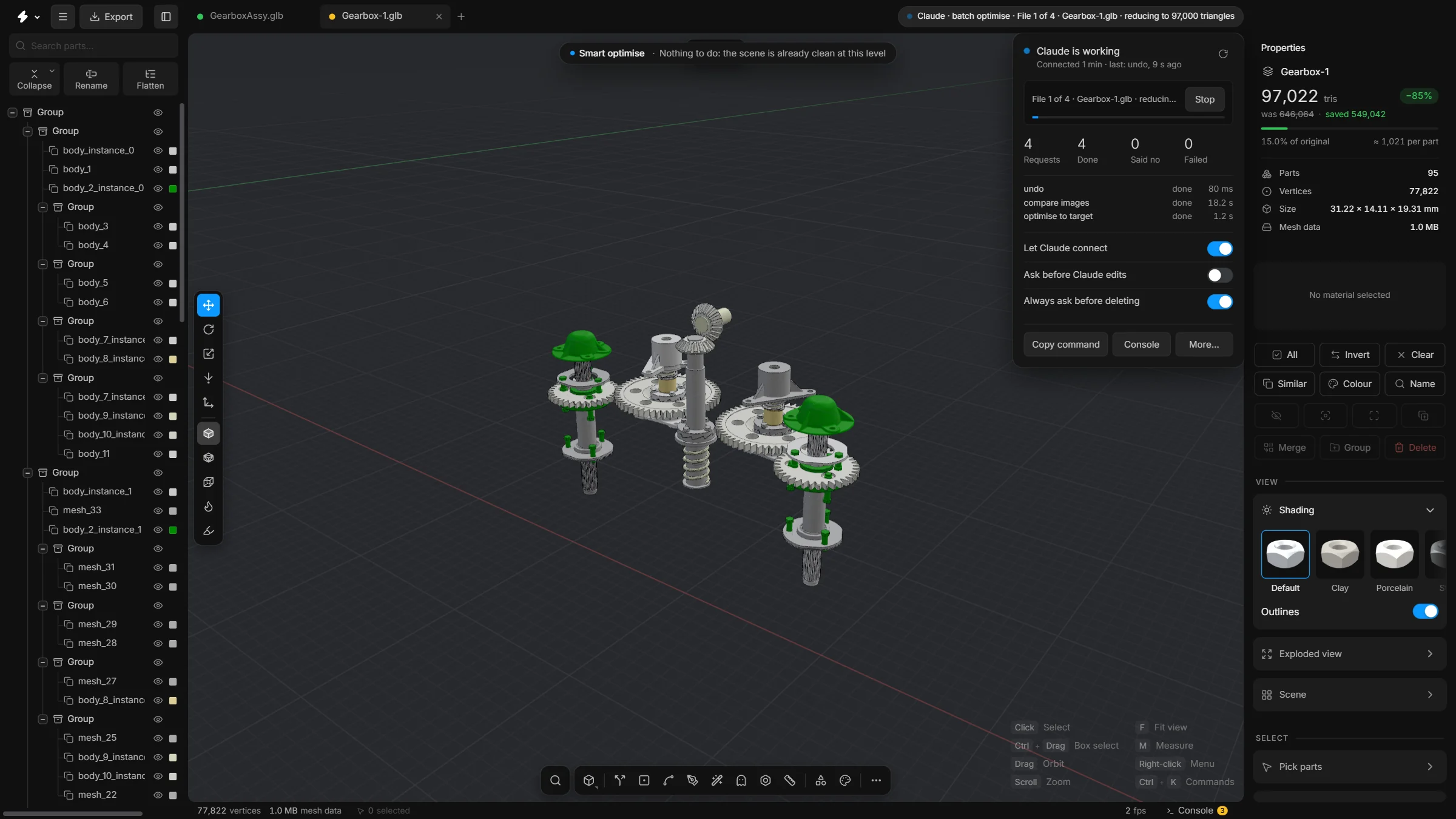
Long jobs run from one request: a model down to web size, or every file in a folder. You see the progress and can stop it.

MeshOptimiser: Before and after on a Scania V8 engine: 3,682,816 triangles on the left, 298,957 on the right, with the bolts hidden.
Before and after on a Scania V8 engine: 3,682,816 triangles on the left, 298,957 on the right, with the bolts hidden.
MeshOptimiser: Four models in a folder: the badge shows the file and step, the dropdown the progress and Stop.
Four models in a folder: the badge shows the file and step, the dropdown the progress and Stop.
Try it first
Add dry run to a step: the app does it, reads the numbers and takes it back. Nothing stays changed.
One call to a size
Under 5 MB, or ready for the web, Shopify, AR or a phone. Claude reduces in rounds and says whether it got there.
Before and after, in one picture
The model as opened next to the model now, same camera, with the numbers under each.
A whole folder
Every file in a folder: opened in its own tab, optimised, exported, closed. Your scene is not touched.
You see it working
The badge shows the file and the step. The dropdown has a progress bar.
Stop, any time
Press Stop, or cancel in Claude. The job ends after the current step, and what was done can be undone.

Ready to send

Pictures worth sending.

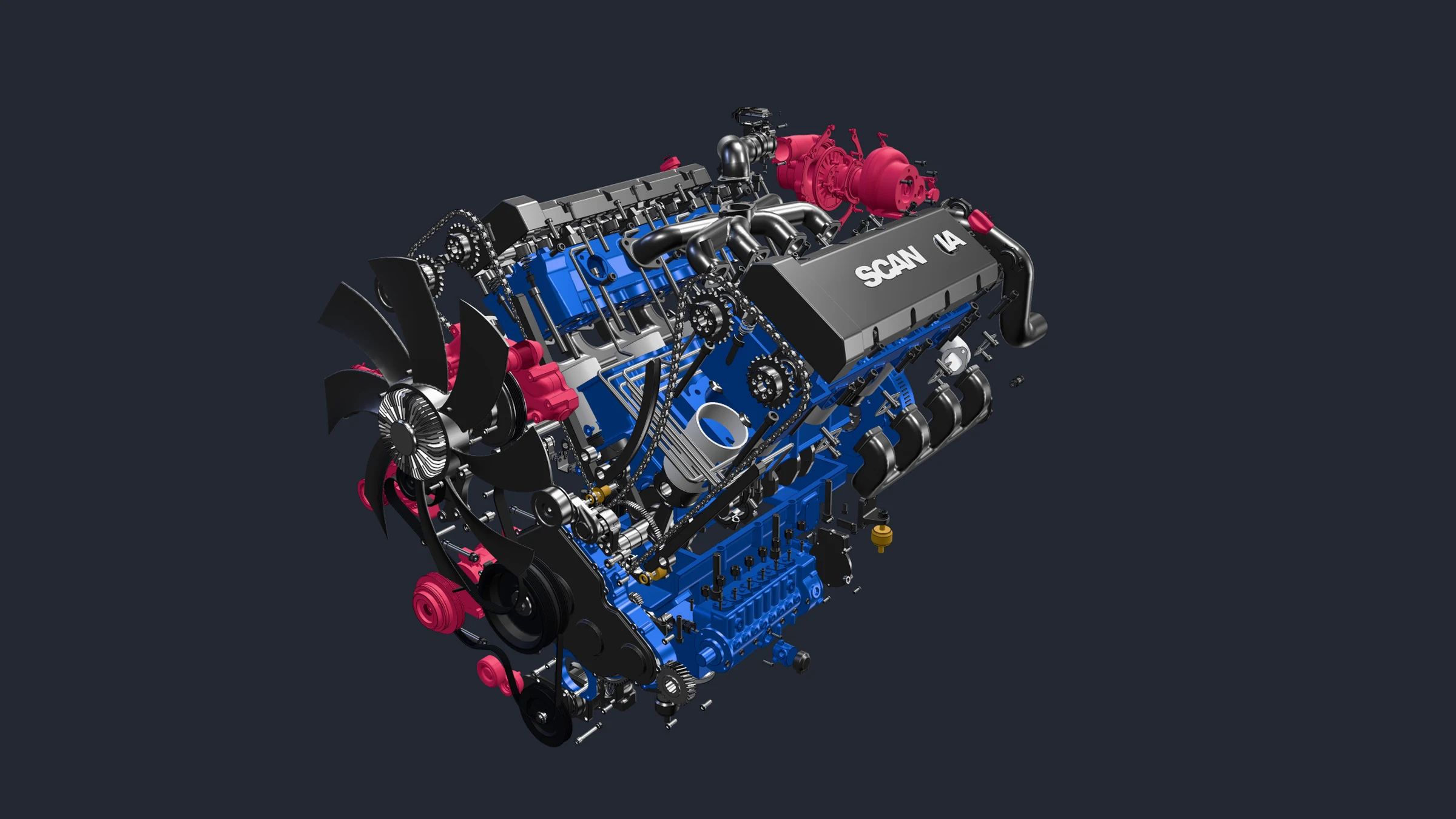
Claude can render the pictures that go with a light model: several angles, a cut-out, an exploded view. Saved as PNG on your computer.

MeshOptimiser: A Scania V8 engine exploded to 55%, on a dark background.
A Scania V8 engine exploded to 55%, on a dark background.
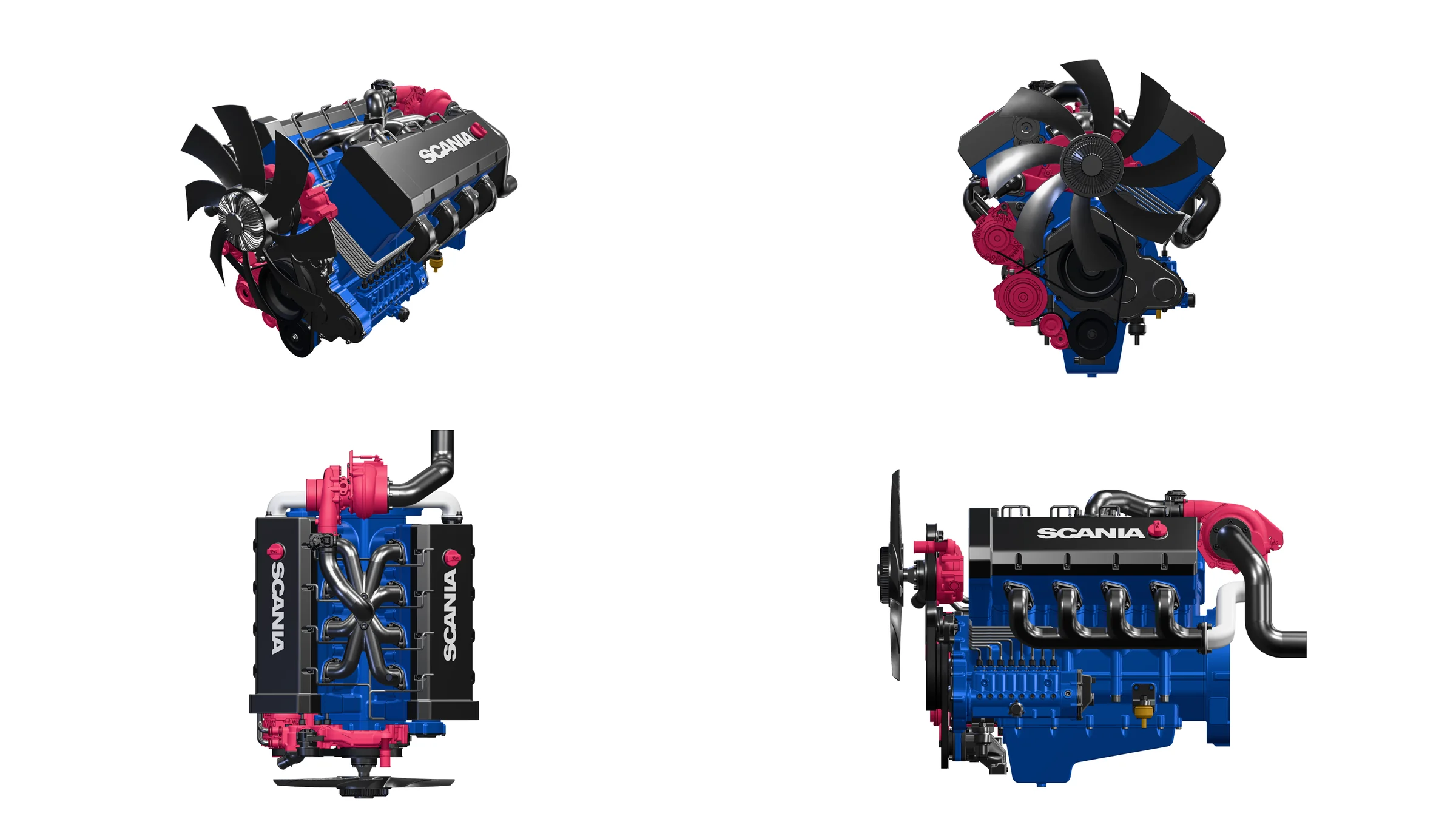
MeshOptimiser: Four angles in one request, on white.
Four angles in one request, on white.
Big and smooth
Up to 8192 pixels a side, with clean edges.
A set of angles
Perspective, front, side and top in one request.
Your background
Any colour, or transparent for a cut-out.
The look you want
Solid, clay, CAD, wireframe, x-ray or heat.
Before and after
Render, optimise, render again with the same camera.
Framed for you
The model fills the frame. No grid.

It already knows the app

It knows how the app is used.

The app hands Claude a short guide and its own help articles: the order to work in, what each step costs, and what is safe.

Six playbooks

  1. How to optimiseLook first, tidy, remove what nobody sees or needs, close detail, reduce last.
  2. Recipes by goalA web viewer, AR, a game engine, 3D printing, a customer, a review, or a number.
  3. JudgementWhat makes a scene heavy, what each step costs in looks, which smart-fit shape to choose, when to ask.
  4. The tools by jobEvery tool, grouped by what you want to do.
  5. What is safeWhat can be undone, what asks you, what is never done without saying so.
  6. When it failsConnection, refusals and results that are not what was expected, with a cause and a next step for each.

The help articles

About fifty of the app’s own help articles, one per tool and job. Claude searches them and reads only the one it needs.

The same articles as on this site, so Claude and the docs never disagree.

Ready-made jobs

  • Optimise for the webTo a triangle target, a step at a time.
  • Lighten it in one goSmart optimise at a level, with a report.
  • Take the bolts outHide, simplify or delete.
  • Make it safe to sendRemove what reveals the design.
  • Review the sceneWhat is heavy and what could go, changing nothing.
About 2,800
tokens for the main playbook, read once
0
tokens for the help articles until Claude searches one
−23%
characters in a typical reply, measured on a 40-part list
1 call
for Smart optimise, instead of a dozen steps

Token counts are estimates at four characters to the token. What a job costs depends on the model and the job.

You stay in charge

Nothing changes without your say.

The app decides what Claude may do. Claude doesn’t.

It asks first
Any change to the model shows Allow or Don’t allow. Looking, selecting and hiding do not.
Four switches
One switch each for editing, moving and renaming, deleting, and files. Off means refused.
Deleting always asks
Even if you turn asking off for everything else.
One undo each
Every change is in the undo history. Ctrl + Z takes it back.
Off until you switch it on
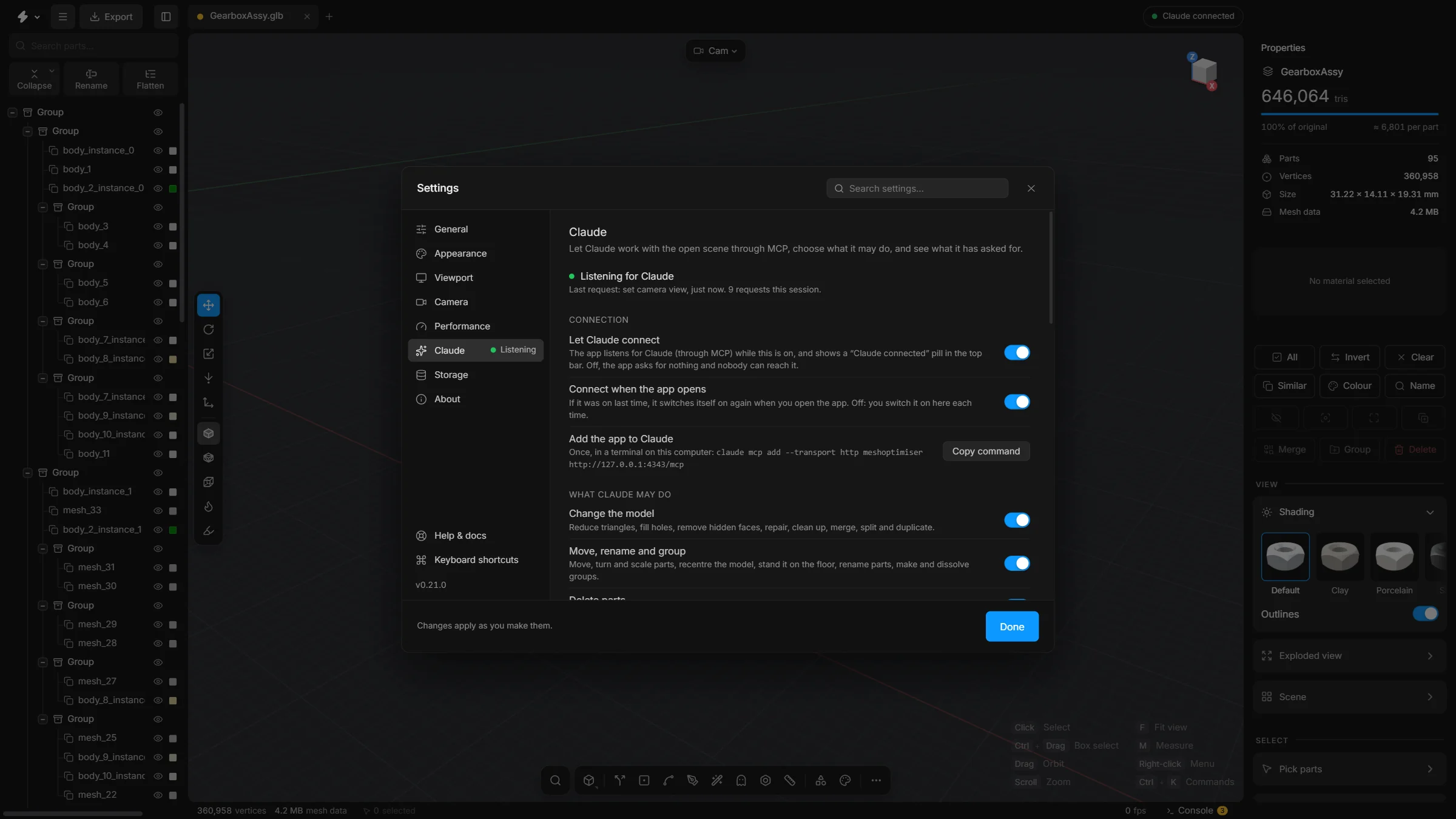
One switch connects it, and the top bar says when it is on. Settings lists every request and your answer.
MeshOptimiser: The prompt that comes before every change to the model.
The prompt that comes before every change to the model.
MeshOptimiser: Settings › Claude: the connection, what Claude may do, and what it asked for.
Settings › Claude: the connection, what Claude may do, and what it asked for.
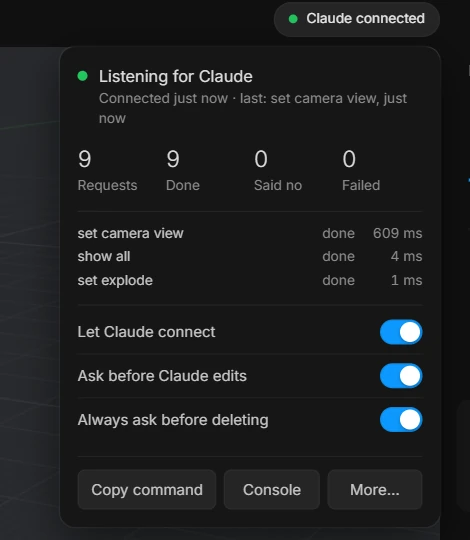
MeshOptimiser: The Claude badge in the top bar, and its dropdown.
The Claude badge in the top bar, and its dropdown.

Always in view

A small control panel, always in view.

While Claude is connected, a badge sits in the top bar. Click it for the numbers and the main switches.

The state
Listening, working or waiting for you, and what Claude asked last.
The numbers
Requests done, refused and failed, and the last three with their times.
The switches
Connect, ask before edits, ask before deleting. Disconnect in one click.
The rest
Copy the connect command, open the console, or open Settings.

What leaves the computer

The app talks to Claude through a small server on your own computer. Your model file is not sent anywhere.

Claude gets what its requests return: part names, counts, sizes and the pictures it asks for. Those pass through Claude like anything you type to it.

Exports and videos go to the app’s exports folder on your computer.

Try asking

Plain words are enough.

  • Optimise this for the web, under 300,000 triangles, and tell me what you took out.

  • Check this model and tell me where the weight is.

  • Find all the bolts and hide them.

  • Get this under 300,000 triangles and tell me what you took out.

  • Show it exploded 50% and take a screenshot.

  • Which ten parts carry the most triangles?

  • Rename every part that starts with “body” to “Housing”.

  • Remove the hidden faces from the ten heaviest parts.

  • Find parts nobody can see from outside and show me before you delete them.

  • Make this safe to send to a customer.

  • What would removing the hidden parts save? Try it, but do not keep it.

  • Take this to the web limits and show me before and after.

  • Optimise every model in this folder for the web.

  • Render four clean pictures of this on white for a client.

Questions

Before you try it.

What is it good for, and what is it not?
Repeated clean-up on assemblies: fasteners, hidden parts, a model to a size, a folder of files, pictures. If you already know which buttons to press, pressing them is just as fast. It saves clicking, not judgement.
Could I do this with Blender and its MCP?
Largely, yes. Blender can reduce, remove and render, and Claude can drive it. MeshOptimiser opens STEP and IGES directly, finds bolts and hidden parts itself, takes a model or a folder to a size in one call, and runs in a browser tab. If you work in Blender and your models are meshes, that is a fair choice.
What do I need?
MeshOptimiser open in a browser tab, and Claude Code or any client that can add an HTTP MCP server.
What is Claude mode?
An alpha view of the app for following Claude. It hides the normal app and shows a feed of what Claude says, every call it makes and every picture it takes, with the model beside it as a card you can show or hide. You open a model there, see the numbers, undo, and start a ready-made job. Open it from the start screen, the Claude badge, the command search or with ?claude on the address.
Is it on by default?
No. It listens only after you switch on Let Claude connect.
Does it work in the online version?
No. Run the app on your own computer.
What if I want it to ask less, or not at all?
Switch off Ask before Claude edits. Deleting still asks unless you switch that off too. Or turn a whole kind of edit off.
Does Claude know how to use the app?
It is told how: six short playbooks and about fifty help articles. It reads the playbook first and searches the articles when it needs one.
How does Claude know how far to go?
Against the app’s own limits, the ones in the Export dialog: about 5 MB and 100,000 triangles for a web page, 15 MB for Shopify, 10 MB and 100,000 triangles for AR Quick Look, 25 MB and 200,000 triangles for a phone app. If you give it a number, yours wins.
Will it save tokens?
It should. One Smart optimise call stands in for a dozen steps, and replies are compact. The playbook costs about 2,800 tokens, read once. There is no promise of a percentage.
Can I see what a step would do before I allow it?
Yes. With dry run the app does the step, reads the numbers and takes it back. Nothing stays changed.
Can Claude do a whole folder of models?
Yes. batch_optimise opens each file in its own tab, optimises it, exports it as name_optimised and closes the tab. Your open scene is not touched. Try one file by hand first.
Can I stop a long job?
Yes. The dropdown has a progress bar and a Stop button, and cancelling in Claude stops it too. The job ends after the current step, and undo takes back what was done.
Can Claude make pictures of the result for a client?
Yes. Up to 8192 pixels, from one or several angles, in clay or solid, on white, dark or transparent, saved as PNG. It can also render before and after with the same camera.
Can Claude break my model?
Not past the undo history. Every change is a step you can take back, and your file on disk is only changed when you export.

Pick how you run it.

In your browser

MeshOptimiser Web

Try the app in a tab. Nothing to install.

On your machine

MeshOptimiser

The full app. Windows and macOS.

Free
Free
Browser tab
Your computer
Files stay local
Files stay local
STEP to GLB
STEP to GLB
Clean-up tools
Clean-up tools
Part library
Part library
Folders and CLI
Folders and CLI
Claude
Claude
Works offline
Works offline

Web opens a sample gearbox first and needs a window 960 px wide. Best in Chrome: Safari on a Mac can lag.